First: it may be working
On Windows 10, the PrtScn key does not save a file and does not flash the screen. It silently copies the whole screen to the clipboard. On current Windows 11 it opens the Snipping Tool overlay instead, and the snip goes to the clipboard and is saved automatically to Pictures\Screenshots. Either way, open Paint or any document, press Ctrl + V, and there is a good chance your "broken" screenshot appears. If that is your case, you are done, and Win + PrtScn (which always saves a file in Pictures > Screenshots) will serve you better going forward.
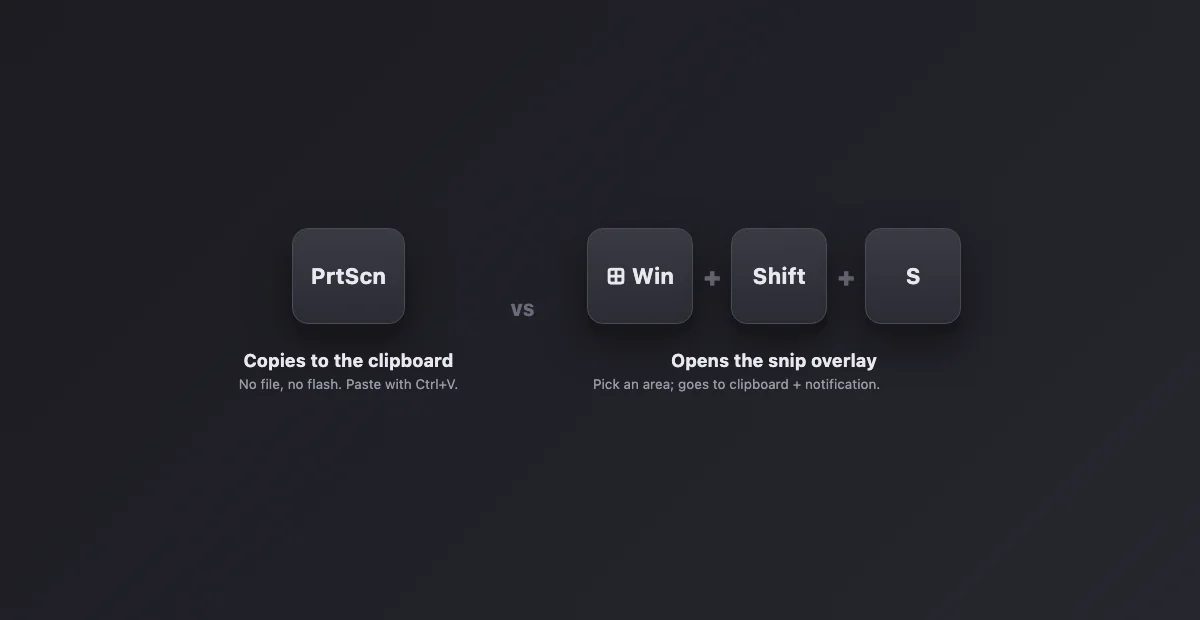
The checklist, most common first
| # | Cause | Fix |
|---|---|---|
| 1 | It went to the clipboard | Paste with Ctrl+V, and on Windows 11 check Pictures > Screenshots. Not a bug. |
| 2 | The F-Lock / Fn layer | On many laptops and compact keyboards PrtScn shares a key. Try Fn+PrtScn, or toggle F-Lock. |
| 3 | OneDrive or Dropbox intercepts it | Both offer "save screenshots to cloud" and quietly reroute captures. Check their settings; your captures may all be in OneDrive > Pictures > Screenshots. |
| 4 | The PrtScn key now opens Snipping Tool | "Use the Print screen key to open screen capture": Settings > Bluetooth & devices > Keyboard on recent Windows 11 builds, Settings > Accessibility > Keyboard on older ones, Settings > Ease of Access > Keyboard on Windows 10. Flip it to match what you expect. |
| 5 | Win+Shift+S shows nothing | If the overlay itself never appears, the Snipping Tool needs a repair or reset. The full sequence is in Win + Shift + S not working. |
| 6 | Do not disturb / notifications off | The snip works but its notification is suppressed (Do not disturb on Windows 11, Focus assist on Windows 10), so it feels broken. The capture is still on the clipboard; paste it. |
| 7 | The keyboard itself | Test in a browser key checker or another keyboard. Dead PrtScn keys are rare but real, and every software fix above will fail identically. |
Win+Shift+S: what "working" looks like
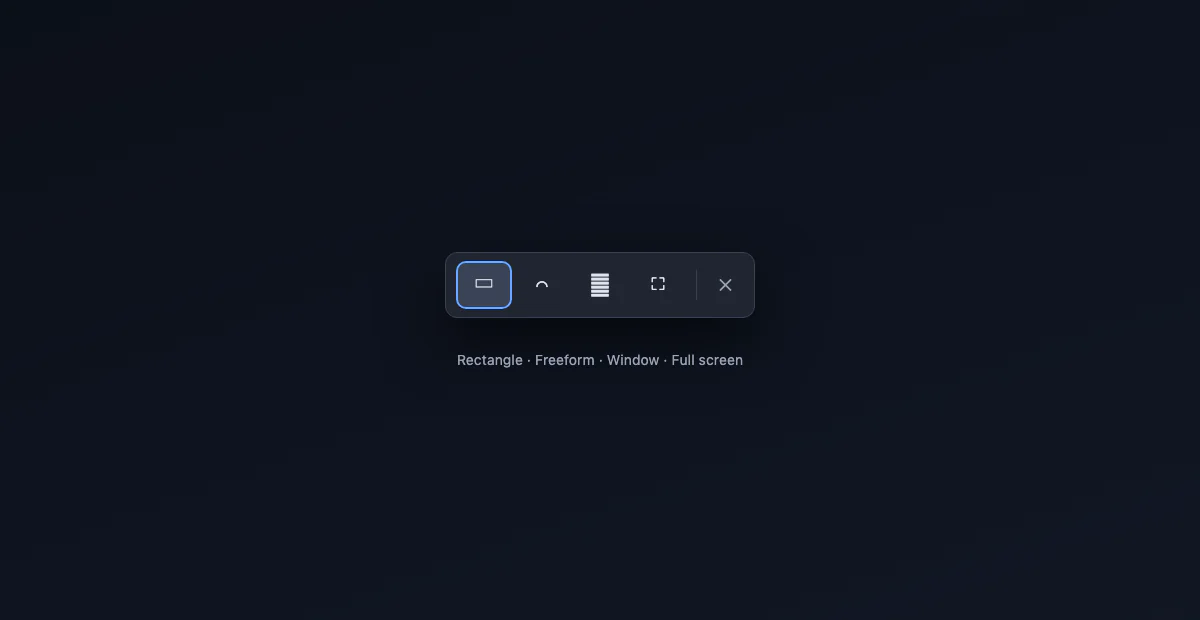
When the shortcut works, the screen dims and a small toolbar offers rectangle, freeform, window and full-screen modes. The capture goes to the clipboard immediately, a notification offers markup, and on Windows 11 a copy is saved to Pictures > Screenshots. If the dimming happens but the toolbar is missing, or the whole thing flashes and vanishes, the app behind it is broken: see Snipping Tool not working.
Where each Windows capture actually lands
Many "not working" reports are really "I don't know where it went". The short map (the long one, with OneDrive and Steam, is in where screenshots go on Windows):
| Shortcut | Destination | File created? |
|---|---|---|
| PrtScn | Windows 11: same as Win+Shift+S. Windows 10: clipboard | Windows 11: yes. Windows 10: no |
| Alt+PrtScn (active window) | Clipboard | No |
| Win+PrtScn | Pictures > Screenshots | Yes |
| Win+Shift+S | Clipboard + notification, plus Pictures > Screenshots on Windows 11 | Windows 11: yes (auto-save). Windows 10: only if you save from markup |
| Win+Alt+PrtScn (Game Bar) | Videos > Captures | Yes |
Two file destinations, not one, is the classic surprise: Game Bar captures live under Videos, not Pictures. If you sometimes press the Game Bar combo by accident, that folder is where your "lost" screenshots retired.
OneDrive's quiet takeover, in detail
OneDrive's backup settings include "Save screenshots I capture to OneDrive". With it on, OneDrive grabs the capture and files it under OneDrive > Pictures > Screenshots, sometimes showing its own toast, sometimes silently. It is a common reason captures "disappear" on work laptops, because IT often enables it fleet-wide. Decide deliberately: keep it on and know your screenshots live in OneDrive on every machine, or turn it off in OneDrive Settings > Sync and backup and return to the standard behavior. Dropbox and Google Drive desktop offer the same interception with the same symptom.
When the Snipping Tool itself is broken
If Win+Shift+S stops responding entirely, the problem is the app behind it, not the key. Repair, reset and reinstall are covered step by step in Snipping Tool not working, and the shortcut-specific causes (a disabled hotkey, a stuck clipboard, another app holding the combination) in Win + Shift + S not working.
Gamers: the overlays fight over your key
Steam binds F12 for its own screenshots, Discord, GeForce Experience and the Xbox Game Bar all run capture overlays, and any of them can swallow PrtScn or conflict with Win+Shift+S while a game or even just the launcher is running. The symptom is captures working on the desktop but not in games, or screenshots appearing in a launcher's gallery instead of your folders. Check each overlay's capture settings, and remember Steam screenshots live in Steam's own folder (see where Steam screenshots are saved).
Windows 10 vs Windows 11: what actually changed
The mechanics are the same; the packaging moved. Windows 10 shipped Snip & Sketch alongside the old Snipping Tool; Windows 11 merged them into a single Snipping Tool that also handles screen recording. The setting that repurposes the PrtScn key (fix 4) exists on both: Windows 10 (version 1809 and later) has it under Ease of Access > Keyboard, switched off by default, while current Windows 11 builds ship it enabled by default, which is why so many people suddenly found their Print Screen key opening an overlay. The other Windows 11 change is the Snipping Tool's automatic save to Pictures > Screenshots; on Windows 10, Win+Shift+S is still clipboard only.
The one-time decision that prevents all of this
A lot of Print Screen frustration is an expectations problem: three shortcuts, three behaviors, none labeled. Decide once what you want. Whole screen as a file: Win+PrtScn, collected in Pictures > Screenshots. A selected area: Win+Shift+S, ready to paste (and saved too on Windows 11). One window for pasting: Alt+PrtScn. Pick one as your habit and the other two stop surprising you.
Win+V: the clipboard history that saves lost captures
Since clipboard captures cause most of the confusion, turn on the feature built for it: press Win+V and enable clipboard history. From then on, Windows keeps your recent clipboard items, screenshots included, and Win+V shows them as a picker. Take three snips in a row and paste all three, in any order, into any app. It also ends the classic tragedy of copying something else and losing the capture you never pasted: the screenshot is still sitting in the history. The history also lets you pin an item so it survives restarts.
On a work machine, it might be policy
If every fix above fails on a corporate laptop, consider that nothing is broken. Companies can disable the Snipping Tool, block captures in specific apps (Citrix sessions, banking software, DRM-protected viewers show black or refuse), or route all screenshots into monitored OneDrive folders via group policy. The tell: shortcuts behave on the desktop but fail inside one specific application, or the Snipping Tool refuses to launch with an administrator message. There is no registry trick worth attempting against managed policy; ask IT what is intended, because on these machines the behavior usually is.
The key itself: Fn layers and shared keys
On plenty of keyboards the Print Screen key is not entirely yours. Laptops often print PrtScn small (model by model: Dell, HP, Lenovo), sharing the physical key with End, Insert or Delete, and the screenshot only fires with Fn held down; some vendors ship an Fn Lock (usually Fn + Esc) that inverts the whole row and flips which press does what. Compact desktop keyboards move PrtScn onto a secondary layer too. If the checklist above came up empty, look at the physical key: when PrtScn is written below the line or in a second color, Fn is part of the shortcut on that machine.
After the capture works again
If the screenshot is headed for a document, a ticket or a post, give it ten seconds of polish: our free screenshot beautifier adds padding, a background and a clean frame right in the browser, nothing uploaded. It works with captures from any of the shortcuts above, and from our guide to every Windows screenshot method if you want the full map.