The short answer
Press Win + Shift + S, drag over what you want, and paste it anywhere with Ctrl + V. It works on every Lenovo with Windows 10 or 11, whatever the keyboard looks like, and it does not involve PrtSc at all.
For a file saved automatically, press Win + PrtSc. The PNG goes to Pictures\Screenshots, as Lenovo's support article confirms. The only hard part is finding PrtSc, which is what the rest of this page is for.
Where PrtSc is on each Lenovo line
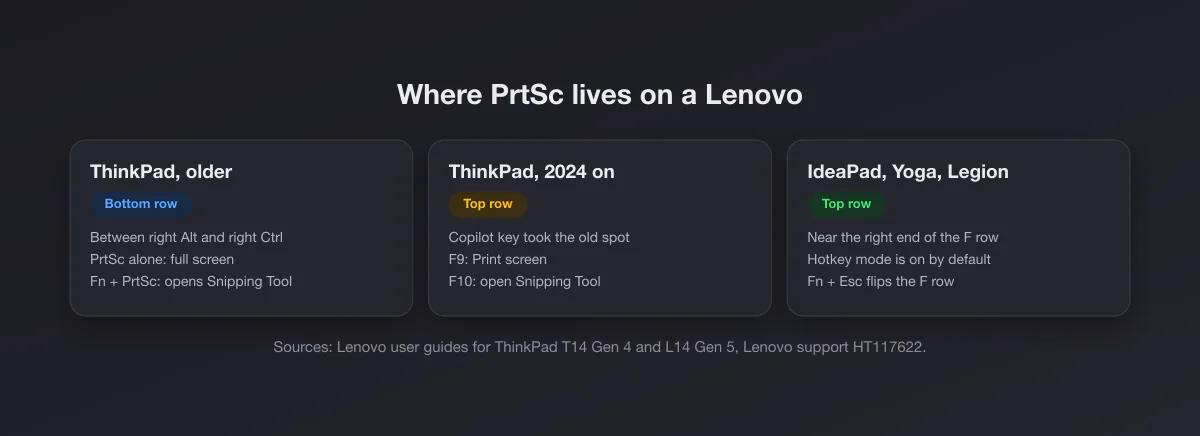
| Lenovo line | Where PrtSc is | What to press |
|---|---|---|
| ThinkPad T, X, E, L, P (up to the 2023 models) | Bottom row, between right Alt and right Ctrl | PrtSc alone. Not with Fn (see the trap below) |
| ThinkPad 2024 and later (Copilot key) | The Copilot key took the old spot. The L14 Gen 5 guide lists F9 as Print screen and F10 as Open Snipping Tool | F9, or Fn + F9 if the F row is in F1 to F12 mode |
| IdeaPad and IdeaPad Slim | Top row, near the right end, sometimes sharing a key | PrtSc, adding Fn only if the label is the second one on the key |
| Yoga (and Yoga 2-in-1) | Top row, near the right end | Same as IdeaPad; in tablet mode use the buttons |
| Legion and LOQ | Top row; the bigger keyboards keep a fuller right-hand cluster | Usually PrtSc alone |
| ThinkBook | Top row, varies by size | Check the label; add Fn if it is the secondary one |
The rule that resolves every "do I need Fn?" question: if PrtSc is the main label on its key, press it alone. If it is a second, smaller label, hold Fn. Lenovo's support note says exactly that: "some systems may require pressing the Fn key".
The ThinkPad Fn trap
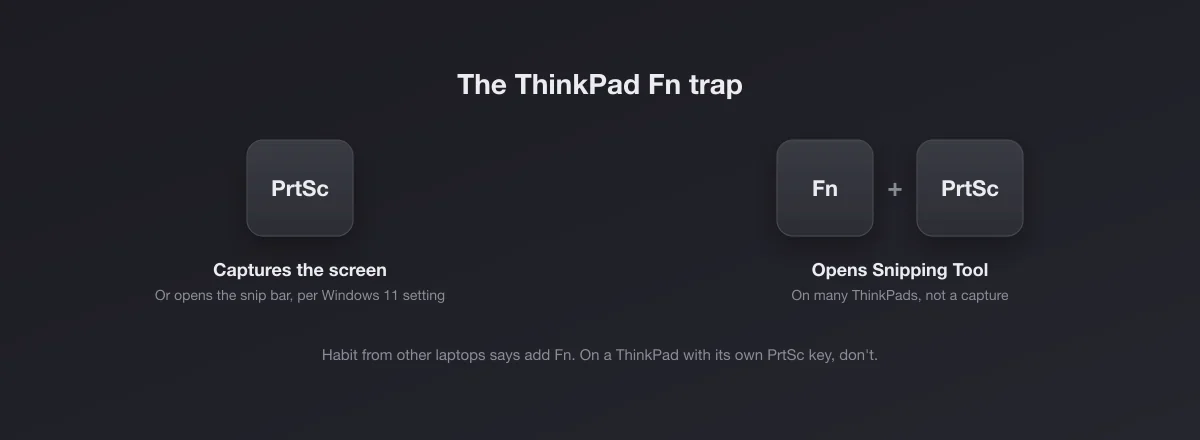
People coming from a Dell or an HP learn that screenshots need Fn. On a ThinkPad with a dedicated PrtSc key, that habit backfires. Lenovo's user guide for the ThinkPad T14 Gen 4 lists Fn + PrtSc as Open Snipping Tool. So you press what you think is the capture and an app window appears instead, with nothing on your clipboard.
Nothing is broken. Press PrtSc on its own and you get the whole screen on the clipboard on Windows 10, or the snip overlay on Windows 11, where the setting below is on by default. Fn + PrtSc is simply a different command. The same guide also maps Fn + S to system request, the old SysRq function that used to share the PrtSc key, so if a forum post mentions SysRq, that is where it went.
2024 ThinkPads: PrtSc moved to F9
Microsoft's Copilot key had to go somewhere, and on ThinkPads it landed in the bottom row spot that PrtSc held for years. Owners of a T14 Gen 5 noticed the Copilot key exactly where their Gen 4 had PrtSc. Lenovo's user guide for the ThinkPad L14 Gen 5 and L16 Gen 1 shows where the function went: F9 is Print screen and F10 opens the Snipping Tool, as special functions of the F row.
Whether F9 fires as Print screen on its own depends on FnLock, covered next. If F9 opens something else, try Fn + F9. Model by model the icons differ slightly, so look for the little screen-with-corners icon on your F row.
If you miss the old key, the Copilot key can be reassigned. Windows 11 has a Copilot key setting under Settings > Personalization > Text input, where you can point it at another app; choosing the Snipping Tool puts a capture key back in the spot your thumb expects.
FnLock: which half of the F row you get
Every Lenovo F key does two things: F1 to F12, and the icon printed on it (volume, brightness, microphone, and on newer models Print screen and Snipping Tool). Fn + Esc toggles which half you get by default. On ThinkPads the Esc key has a small light that shows when FnLock is on, and the T14 Gen 4 guide describes the shortcut as switching between "the special function printed as an icon on each key" and the standard F1 to F12.
IdeaPad, Yoga, Legion and ThinkBook machines ship in hotkey mode, where pressing an F key does the icon function without Fn. Legion's user guide describes the icons as the keys' hidden functions, with Fn as the switch between the two layers. Whichever layer is the default, Fn gets you the other one. On consumer Lenovos the same switch also lives in the BIOS as "Hotkey Mode" and in the Lenovo Vantage app.
Every Windows screenshot shortcut, on a Lenovo
| Shortcut | What it does | Where it goes |
|---|---|---|
| Win + Shift + S | Snip a rectangle, freeform shape, window or full screen | Clipboard, and Windows 11 also saves to Pictures\Screenshots by default |
| Win + PrtSc | Whole screen, saved | Pictures\Screenshots |
| PrtSc | Whole screen, or the snip overlay on Windows 11 | Windows 10: clipboard. Windows 11: clipboard plus Pictures\Screenshots |
| Alt + PrtSc | Active window only | Clipboard |
| Fn + PrtSc (many ThinkPads) | Opens the Snipping Tool app | Nothing captured yet |
| Win + Alt + PrtSc | Active window, through Game Bar | Videos\Captures |
On a 2024 ThinkPad, read "PrtSc" in that table as F9. The step by step for each method, including delays and freeform snips, is in our guide to screenshots on Windows.
Windows 11 may have changed what PrtSc does
On recent Windows 11 builds, Settings > Accessibility > Keyboard > Use the Print screen key to open screen capture is turned on, so PrtSc dims the screen and shows the snip toolbar instead of copying everything silently. If you want the old behaviour, switch it off. If you like it, you now have a one-key snip that works the same on every Lenovo.
Where Lenovo screenshots are saved
- Win + PrtSc: a PNG in
C:\Users\yourname\Pictures\Screenshots. The screen dims briefly to confirm. - Win + Shift + S and PrtSc: the clipboard, and on Windows 11 the Snipping Tool also saves an automatic copy in Pictures\Screenshots. On Windows 10 there is no file until you paste.
- Alt + PrtSc: the clipboard only, on both versions.
- OneDrive: if it backs up screenshots, they end up in
OneDrive\Pictures\Screenshotsinstead.
Lost one? Our guide to where screenshots go on Windows covers every destination. The same shortcuts on other keyboards: Dell and HP. If Win + Shift + S itself stopped responding, see Win + Shift + S not working.
Lenovo tablets, Yoga in tablet mode, and Chromebooks
Yoga and other 2-in-1s folded into tablet mode: press Power + Volume down. The screen dims and the file goes to Pictures\Screenshots.
Lenovo Tab tablets run Android, so it is the Android gesture: Power + Volume down, with the image in the Photos or Gallery app under Screenshots.
Lenovo Chromebooks (IdeaPad Flex Chromebook, Lenovo Chromebook Duet and others) run ChromeOS. The shortcut is Ctrl + Show windows for the full screen and Ctrl + Shift + Show windows for an area; files land in Downloads.
One-key capture with Lenovo Vantage
On recent ThinkPads, the T14 Gen 4 guide notes that F12 can be customised in the Lenovo Vantage app. Point it at the Snipping Tool and you have a dedicated capture key, which is handy on the 2024 models where PrtSc no longer has a key of its own.
When nothing happens
- It worked, silently. Alt + PrtSc, and PrtSc on Windows 10, only fill the clipboard. Paste before assuming failure.
- Wrong Fn layer. Toggle Fn + Esc and retry, or try with and without Fn.
- You pressed Fn + PrtSc on a ThinkPad. That opens the app. Use PrtSc alone.
- Another app owns the key. OneDrive, Dropbox, Lightshot, Greenshot and game overlays take over PrtSc.
- Protected content. Streaming video and some banking apps capture as black on purpose.
The detailed fixes are in Print Screen not working.
Recording the screen instead
For video, two recorders come with Windows and neither needs PrtSc. The Snipping Tool on Windows 11 has a record mode (the video camera icon) that captures an area to MP4, which on a 2024 ThinkPad is one press of F10 away. Game Bar records the active app with Win + Alt + R into Videos\Captures; it works one window at a time and skips the desktop. Legion owners also get Lenovo's Legion Space or Legion Zone, but Game Bar is the simpler route for a quick clip.
A page longer than the screen
No Lenovo key captures a scrolling page, because Windows has no such feature. The browser does: in Chrome or Edge press F12, then Ctrl + Shift + P, type "screenshot" and choose the full size capture. Edge also has a Screenshot item in its menu, and Firefox offers Take Screenshot on the right click menu with a full page option.
After the capture
Trim it with the tools you already have using our guide to cropping screenshots on Windows. For a screenshot that goes into a slide, a README or a support ticket, the free screenshot beautifier adds padding, a background and rounded corners in your browser, and the PNG to JPG converter makes a heavy capture small enough for an email or upload form.