First, which symptom do you have?
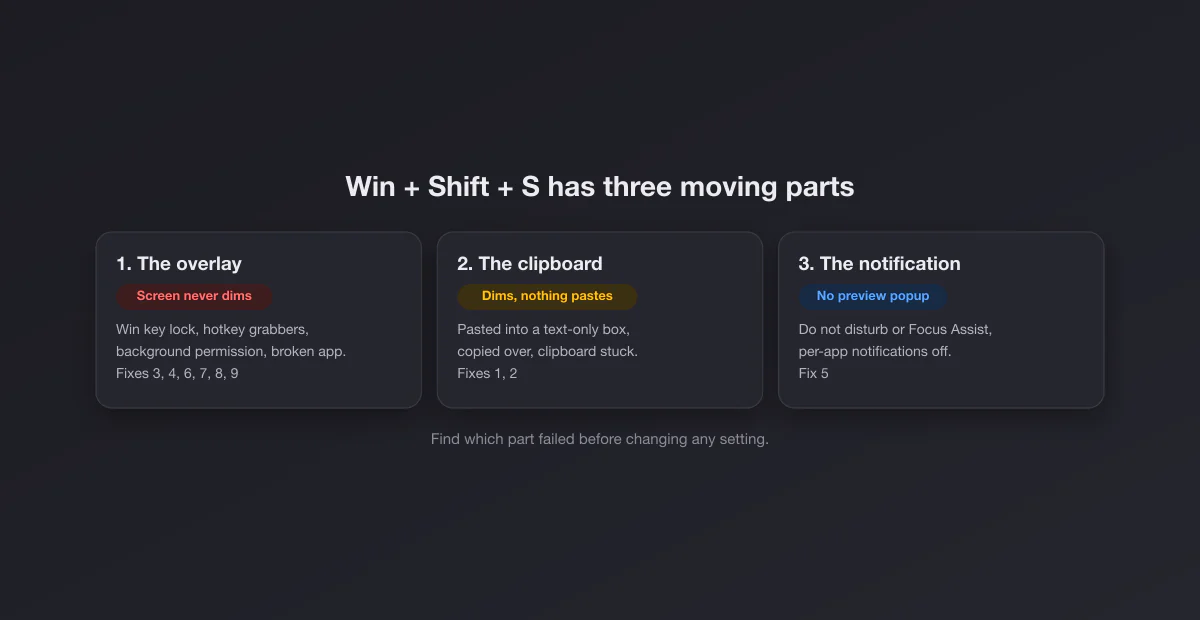
Win + Shift + S is not a simple key binding. It asks the Snipping Tool app to draw its capture overlay, then hands the result to the clipboard, then asks the notification system to show a preview. Three components, and any of them can be the one that broke. Before trying anything, press the shortcut once and watch carefully:
| What you see | Most likely cause | Jump to |
|---|---|---|
| Nothing at all. No dimming, no toolbar. | The key press never reaches Windows, or Snipping Tool is broken | Fixes 3, 4, 6, 7, 8 |
| The screen dims, the toolbar appears, then nothing pastes | Clipboard problem, or you are pasting somewhere that rejects images | Fixes 1, 2 |
| The capture pastes fine but there is no preview popup | Notifications are off or silenced | Fix 5 |
| The screen flickers and the toolbar vanishes instantly | Snipping Tool is crashing on launch | Fixes 6, 7 |
| Works on the desktop, fails inside one app or game | That app blocks captures, or an overlay steals the keys | Fix 4, and the section on protected apps |
If you came here because the whole Print Screen family misbehaves, not just this shortcut, start with our broader guide to Print Screen not working. This page goes deep on the one shortcut.
Fix 1: check whether it actually worked
The most common "broken" Win+Shift+S is a working one. The shortcut does not save a file to a folder you can see on the desktop, and it does not open an editor. According to Microsoft's Snipping Tool support page, the snip is copied to the clipboard, and on Windows 11 it is also saved automatically to your Screenshots folder. So:
- Take a snip.
- Open Paint, Word, a chat window or an email, and press Ctrl + V.
- If an image appears, the shortcut works. Your problem was where to find the result.
Watch out for where you paste. Notepad, the address bar and plenty of web forms accept only text, so pasting an image there does nothing and looks exactly like a failed capture. Test in Paint, which accepts anything. On Windows 11 also look in Pictures\Screenshots; our guide to where screenshots go on Windows covers every destination.
Fix 2: turn on clipboard history
The clipboard holds one item. Snip, then copy a link before pasting, and the snip is gone. That single fact explains a surprising number of "it worked yesterday" reports. The cure is built in: press Win + V and choose Turn on. From then on Windows keeps a list of recent items, images included, and Win + V lets you pick any of them.
Limits worth knowing, per Microsoft's clipboard help page: history holds 25 entries, each item can be up to 4 MB, and history clears every time you restart unless you pin an item. A full-screen snip on a 4K display can exceed 4 MB, so a giant capture may simply not appear in the history list even though the paste right after it works.
If pasting worked before and stopped entirely, the clipboard service itself may be stuck. Signing out and back in restarts it; so does a reboot. Clipboard managers and remote desktop tools also hook the clipboard and occasionally break it, so quit them and retest.
Fix 3: rule out the keyboard
Thirty seconds that save an hour. Press Win alone: does the Start menu open? Press Win + E: does File Explorer open? If neither works, the problem is not the Snipping Tool at all.
- Gaming keyboards have a Windows key lock. It exists so you do not tab out of a game by accident. It is usually a key with a lock icon, a Fn combination such as Fn + Win, or a "game mode" toggle in the keyboard's companion software. When it is on, every Win shortcut is dead, including this one.
- Remapping tools. PowerToys Keyboard Manager, AutoHotkey scripts and vendor utilities can remap or swallow Win combinations. Disable them one at a time.
- Remote sessions. Inside Remote Desktop, a virtual machine or a Citrix window, the key combination may go to the remote computer instead of yours. Click outside the session first.
Fix 4: close the apps that grab screenshot keys
Several popular programs register global screenshot hotkeys and can intercept the combination before Windows sees it, or launch their own capture over the top of it. The usual suspects: ShareX, Greenshot, Lightshot, Snagit, OneDrive and Dropbox screenshot features, GeForce Experience and the NVIDIA overlay, the AMD overlay, Discord, and the Steam overlay. The tell is that the shortcut does something, just not the Windows thing, or that it fails only while a launcher is running.
Quit them from the system tray (the arrow next to the clock), press Win + Shift + S, and bring them back one at a time until it breaks again. Then change that app's hotkey rather than uninstalling it.
Fix 5: let the notification through
If the capture pastes but the little preview never pops up in the corner, Windows is suppressing the notification. Nothing is wrong with the capture; you just lose the one-click route into the editor. Three places to check on Windows 11:
- Do not disturb. Open Settings, System, Notifications. If Do not disturb is on, Snipping Tool's preview is held back. Windows 10 calls this Focus Assist and keeps it under System, Focus assist.
- Automatic rules. On the same page, the rules that turn Do not disturb on by themselves (while gaming, while duplicating your display, during certain hours) catch people out. If the popup vanishes only in presentations or games, this is why.
- The app's own toggle. Scroll down to the per-app list and make sure Snipping Tool is allowed to send notifications and show banners.
Without the notification you can still edit: open the Snipping Tool app and paste with Ctrl + V, or open the saved copy from the Screenshots folder.
Fix 6: let Snipping Tool run in the background
On Windows 11, Win + Shift + S wakes a part of the Snipping Tool app that has to be allowed to run when the app is closed. Battery saver settings, "debloat" scripts and some optimisation tools switch that permission off, and the shortcut quietly stops responding.
- Open Settings, Apps, Installed apps.
- Find Snipping Tool, open the three-dot menu and choose Advanced options.
- Under background apps permissions, set it to Always or Power optimized rather than Never.
On Windows 10 the equivalent lives in Settings, Privacy, Background apps, and the relevant app is Snip & Sketch.
Fix 7: repair, then reset, the Snipping Tool
If the overlay never appears or flashes and vanishes, the app behind it is damaged. Microsoft's repair guide gives the path: Settings, Apps, Installed apps, the three-dot menu next to Snipping Tool, Advanced options.
- Press Repair first. It keeps your settings and takes seconds. Test the shortcut.
- If it still fails, press Reset. It returns the app to a clean state and clears its settings, including your save folder choice.
- Restart the computer. Background components do not always reload until you do.
If repair and reset both fail, the app needs reinstalling. That process, plus the expired-certificate failure that once broke the tool for everyone, is covered in detail in Snipping Tool not working.
Fix 8: update Windows and the app
Snipping Tool updates through the Microsoft Store, separately from Windows. Open the Store, go to Library, and press Get updates. Then run Windows Update. Old app builds on a new Windows build (or the reverse) are a classic source of an overlay that refuses to appear, and an update is the least invasive fix left at this point.
Fix 9: check for a policy block
On a work or school computer, nothing may be broken at all. Administrators can disable the Snipping Tool through Group Policy or device management, and when they do the shortcut simply does nothing. If you can open Group Policy Editor, the setting is named "Do not allow Snipping Tool to run". If you cannot, ask IT; it is a choice, not a fault, and none of the fixes above will override it.
Protected apps: the capture is black, not broken
If the shortcut works everywhere except inside one app, and that app is a streaming service, a banking app, a DRM video player or a secure work tool, you are seeing intentional protection. The overlay may appear, but the captured area comes out black or empty. No setting changes this; the app asks Windows to exclude its window from all captures. The same applies to some password managers and to private browsing windows in certain configurations.
Games are a different case: in exclusive full screen they own the display, and the overlay cannot draw over them. Switch the game to borderless windowed, or use Win + Alt + PrtScn (Game Bar), which saves to Videos\Captures. Steam's own F12 capture is another option, explained in where Steam screenshots are saved.
Alternatives while you fix it
You rarely need this specific shortcut. These do the same job while you troubleshoot:
| Instead of Win + Shift + S | What you get |
|---|---|
| Win + PrtScn | Full screen saved straight to Pictures\Screenshots, no app involved |
| PrtScn | Windows 10: full screen to the clipboard. Windows 11: the same snipping overlay, since the Print screen setting is on by default |
| Alt + PrtScn | Only the active window, to the clipboard |
| Snipping Tool from the Start menu | All capture modes plus a delay timer |
| Browser DevTools | A whole web page, scroll included; see full page screenshots in Chrome |
If the built-in tool keeps letting you down, a third-party capture app sidesteps the shortcut entirely: see Snipping Tool alternatives, or Snagit vs Snipping Tool if you are weighing the paid option.
On Windows 11 there is also a setting that makes the plain Print Screen key open the same overlay. The setting is "Use the Print screen key to open screen capture", under Settings, Bluetooth & devices, Keyboard on recent Windows 11 builds (Settings, Accessibility, Keyboard on older ones). Turning it on gives you a one-key route to the overlay that bypasses any Win-key problem, which makes it the best workaround for a locked or broken Windows key. If you want the opposite (Print Screen copying the whole screen, as it always did), turn it off.
Why it breaks after updates
Since Windows 11, the Snipping Tool is a Store app that updates on its own schedule, and the shortcut depends on it. When a Windows feature update lands and the Store update for the app has not yet arrived (or the other way round), the pieces can briefly disagree. That is why this problem clusters right after big updates, and why Fix 8 often works without anything else. Clean installs that strip Store apps, and "debloat" scripts that remove them, break the shortcut permanently until the app is reinstalled.
Once it works again
Your snip sits on the clipboard ready to paste, which also makes it ready to tidy. Paste it straight into our free screenshot beautifier to add padding, a background and rounded corners in the browser, with nothing uploaded. To trim it first, see cropping a screenshot on Windows, and for every other capture method, the full guide to screenshots on Windows.