The short answer
If you want one free upgrade, install ShareX: scrolling capture, OCR, GIF recording, automatic uploads and more settings than you will ever touch. If you want something simpler that just captures and annotates fast, take Greenshot or Flameshot. If your job is documentation and you want polished step-by-step images without fighting software, Snagit is the paid standard at $39 per year.
And if you are on a Mac, this list is not for you: the Snipping Tool does not exist there, and the built-in Mac tools cover most of it. Read how to screenshot on a Mac instead.
First: what the Snipping Tool already does
A lot of "alternatives" articles were written when the Snipping Tool was a bare rectangle grabber. On a current Windows 11 it does far more, and you might not need a replacement at all:
- Four capture modes: rectangle, window, full screen and freeform, all from Win + Shift + S.
- A delay of 3, 5 or 10 seconds for menus that close.
- Screen recording with Win + Shift + R, with microphone and system audio.
- Text actions: copy text out of a snip, and quick redact that hides email addresses and phone numbers.
- Auto-save to Pictures\Screenshots, plus the clipboard.
What it still does not do: scrolling capture of a long page, GIF export, step numbers and callouts, upload and share links, and any kind of automation (capture, then resize, then upload, then copy the link). Every alternative below exists because of one of those gaps. If none of them matter to you, stop here; the full guide to the built-in tools is how to screenshot on Windows.
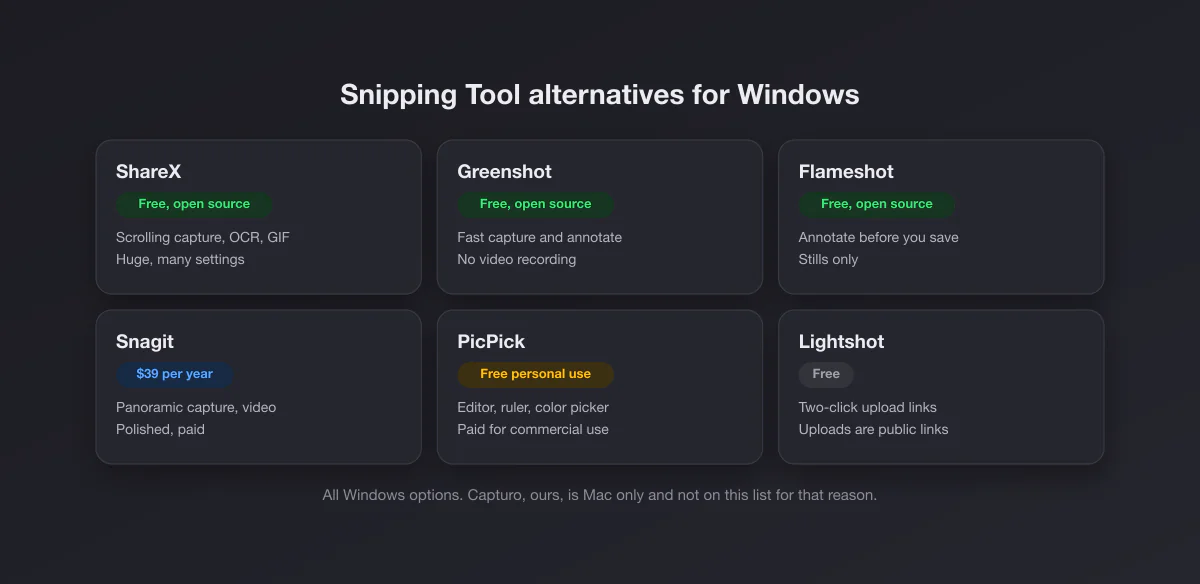
1. ShareX: everything, free, with a learning curve
ShareX is free and open source, Windows only, and has been developed for more than 18 years. It captures regions, windows, the full screen and scrolling content, records video and GIFs, runs OCR, and can upload the result to dozens of destinations automatically, with the link already on your clipboard. It also ships a colour picker, a screen ruler and a QR code tool.
The trade-off is the interface. ShareX is built around "after capture" and "after upload" task chains, and the settings window is enormous. Spend twenty minutes setting it up once and it is the most capable free tool on Windows by a distance. Want something you can understand in thirty seconds? Look further down.
Pick it if you need scrolling capture or GIFs, or you want capture to upload to happen without clicking.
2. Greenshot: the fast, simple one
Greenshot is free and open source on Windows. Press Print Screen, pick a region, and a small menu asks what to do with it: save, copy, open in the editor, print, attach to an email or send to Office. The editor does arrows, boxes, text, highlighting and obfuscation (blur or pixelate) without any learning curve.
No video, no GIF, and its scrolling capture only ever worked with Internet Explorer, so treat it as stills only. Development has been slow for years, which is not a problem for a tool this simple, but do not expect new features.
Pick it if you want a better Print Screen key with an annotator, and nothing more.
3. Flameshot: annotate before you save
Flameshot is free and open source, and runs on Windows, macOS and Linux. Its trick is that annotation happens on the capture itself: you drag a region, and the drawing tools (arrows, boxes, text, numbered markers, blur) appear around it right there, before anything is saved. For quick annotated screenshots that is the fastest workflow on this list.
It is stills only: no video, no GIF, no scrolling capture. It also suits people who move between Windows and Linux and want the same tool on both.
Pick it if nearly every screenshot you take gets an arrow or a box before you send it.
4. Snagit: the paid, polished standard
Snagit from TechSmith costs $39 per user per year on its official store (checked October 2026), with a 14-day money-back guarantee. It is now a subscription for new buyers. It runs on Windows and Mac.
What the money buys: panoramic and scrolling capture, video recording with webcam, Grab Text OCR, a Step tool that numbers instructions automatically, templates that combine several captures into one how-to image, and an editor that can move buttons around inside a screenshot or swap text that was baked into the pixels. It is the tool technical writers and support teams are trained on.
For a single person taking a few screenshots a day, that is a lot of software and a yearly bill for features that the free tools above mostly cover.
Pick it if you write documentation, tutorials or support replies for a living. Our Snagit vs Snipping Tool comparison goes feature by feature, and Snagit alternatives covers cheaper routes.
5. PicPick: an all-in-one image toolbox
PicPick combines capture (including scrolling windows), an image editor, a colour picker, a pixel ruler, a protractor and a magnifier. It is free for personal, non-commercial use; commercial use needs the Professional licence, listed at $30 per year on its pricing page in October 2026 (a promotional price, normally $36), with a lifetime option also offered. Check the current price before buying, since it has been changing.
Pick it if you are a designer or developer who wants measuring tools next to the capture tool.
6. Lightshot: capture and share in two clicks
Lightshot is free and does one thing quickly: select an area, add a quick mark, and either save it or upload it to get a short link. The upload is the reason people use it, and also the reason to be careful: uploaded screenshots live on a public short-link site, and anyone who has or guesses the link can open them. Never upload anything with personal data, invoices, passwords or chat history.
Pick it if you share harmless screenshots in chats constantly and want a link instead of a file.
The comparison table
| Price | Scrolling | OCR | Video | GIF | Platforms | |
|---|---|---|---|---|---|---|
| Snipping Tool | Free, built in | No | Yes | Yes, with audio | No | Windows |
| ShareX | Free, open source | Yes | Yes | Yes | Yes | Windows |
| Greenshot | Free, open source | No (IE only) | No | No | No | Windows |
| Flameshot | Free, open source | No | No | No | No | Windows, Mac, Linux |
| Snagit | $39 per year | Yes | Yes | Yes, plus webcam | Yes | Windows, Mac |
| PicPick | Free personal; paid commercial | Yes | No | No | No | Windows |
| Lightshot | Free | No | No | No | No | Windows, Mac |
Prices from each vendor's official site in October 2026. Software pricing changes, so check the current price before you pay for anything.
Which one, by situation
| You need… | Take |
|---|---|
| A long web page in one image | ShareX, or your browser's own full-page capture |
| Text out of a screenshot | The Snipping Tool already does it |
| A screen recording with sound | The Snipping Tool already does it |
| A GIF for a bug report or a chat | ShareX |
| Fast arrows and boxes on every capture | Flameshot or Greenshot |
| Numbered steps for documentation | Snagit |
| A share link instead of a file | ShareX with an uploader you control, or Lightshot for harmless images |
The scrolling capture shortcut nobody mentions
Scrolling capture is the most common reason people leave the Snipping Tool, and most of the time they are capturing a web page. For that, the browser already does it: in Chrome or Edge open developer tools with F12, press Ctrl + Shift + P, type "screenshot" and choose Capture full size screenshot. Edge also has a Screenshot button (Ctrl + Shift + S) with a "Capture full page" option, and Firefox has Take Screenshot in the right-click menu. You only need an app for scrolling capture of desktop programs.
Before you install: check what is grabbing Print Screen
Every tool on this list wants the Print Screen key, and so does Windows 11, which opens the Snipping Tool with it by default. Install two of them and the key does something unpredictable. After installing an alternative, decide who owns the key: in Windows Settings, under Accessibility, Keyboard, turn off "Use the Print screen key to open screen capture" if you want your new app to have it. If Print Screen stops working entirely, our Print Screen troubleshooting guide goes through the causes in order.
On a Mac? Read this instead
We make a capture app, Capturo, and it is not on this list for a simple reason: it is Mac only. There is no Windows version, and recommending it to a Windows user would be useless.
If you came here from a Mac looking for a Snipping Tool, the good news is that macOS has most of it built in: Shift + Command + 4 for an area, Shift + Command + 5 for the full toolbar with timer and video. Start with how to screenshot on a Mac and the list of Mac screenshot shortcuts. If you then want recording with system audio, a webcam bubble and gradient backgrounds, that is where Capturo fits, at $29 once on the download page; the Snipping Tool for Mac guide maps every Windows feature to its Mac equivalent, and best screenshot app for Mac compares the paid options.
After the capture
Whatever tool you use, a raw screenshot dropped into a slide or a post looks unfinished. Our free screenshot beautifier adds padding, a background, rounded corners and a shadow in the browser, on any operating system, and the image never leaves your computer. If a tool gave you WebP or AVIF files that something refuses to open, the WebP to PNG converter fixes that too.