The short answer
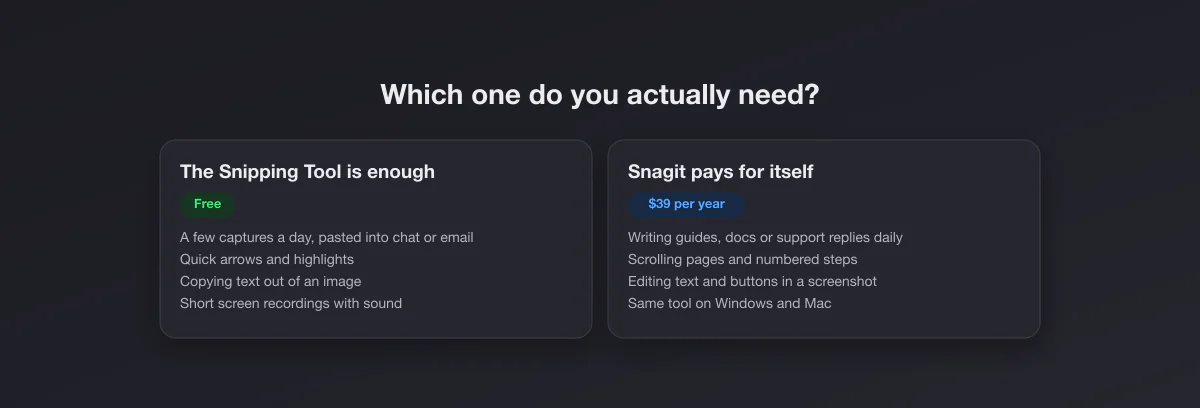
For most people, the Snipping Tool is enough. On current Windows 11 it captures regions, windows, the full screen and freeform shapes, records the screen with microphone and system audio, copies text out of images and redacts emails and phone numbers. That covers everyday screenshots.
Snagit is worth its $39 per year if you produce instructions for other people: documentation, training material, support replies, bug reports with steps. Its scrolling capture, automatic step numbers, templates and in-image text editing save real time when you do that every day. If you do it once a month, they do not.
Price and licensing
The Snipping Tool is part of Windows 10 and 11 and costs nothing. It updates through the Microsoft Store, so new features arrive without you doing anything.
Snagit is listed at $39 per user per year on TechSmith's store (checked October 2026), billed yearly, with a 14-day money-back guarantee. Since Snagit 2025, new purchases are a subscription; the old pay-once licence is gone for new buyers, and existing perpetual licences keep working but stop getting new versions. Teams and education pricing exist on separate pages. Snagit is also bundled into TechSmith's Camtasia plans, so if your company already pays for Camtasia, you may have Snagit already.
Over five years that is roughly $195 for Snagit against zero, which is the number to keep in mind while reading the rest.
Feature by feature
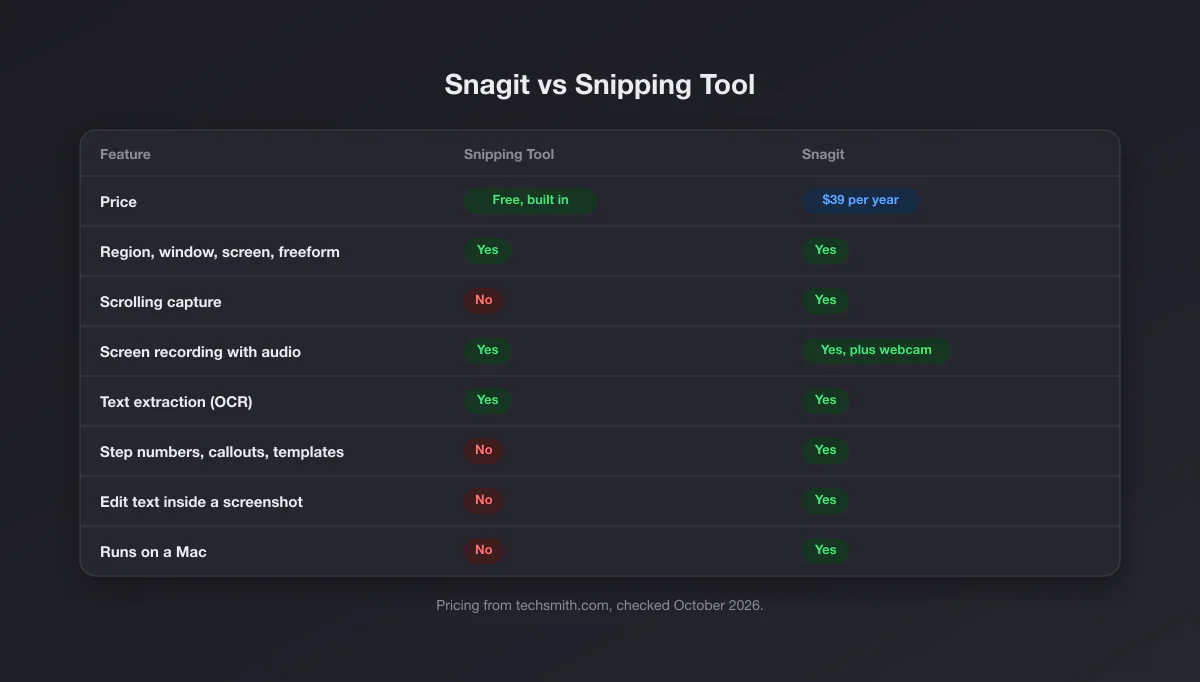
| Feature | Snipping Tool | Snagit |
|---|---|---|
| Price | Free, built into Windows | $39 per user per year |
| Platforms | Windows only | Windows and Mac |
| Region, window, full screen | Yes | Yes |
| Freeform shape | Yes | Yes |
| Delay timer | 3, 5 or 10 seconds | Yes, configurable |
| Scrolling or panoramic capture | No | Yes |
| Screen recording | Yes, mic and system audio | Yes, mic, system audio and webcam |
| GIF export | No | Yes |
| Copy text from an image (OCR) | Yes, text actions | Yes, text recognition |
| Automatic redaction | Emails and phone numbers | Smart Redact |
| Arrows, shapes, highlighter | Basic set | Full set with styles and stamps |
| Numbered step markers | No | Yes, Step tool |
| Edit text or move buttons inside a screenshot | No | Yes, text recognition and Smart Move |
| Simplified UI graphics | No | Yes, Simplify |
| Templates combining several captures | No | Yes |
| Searchable library of past captures | No, files in a folder | Yes, with tags |
| Share links | No | Yes, via TechSmith Screencast |
Where the Snipping Tool is genuinely good now
Many comparisons online still describe the Windows 7 Snipping Tool. The current one is a different program:
- It is instant. Win + Shift + S opens the capture overlay with no app to launch, and on Windows 11 the Print Screen key does the same by default.
- It records. Win + Shift + R records a region with your microphone and the computer's sound, which covers short demos and bug reproductions.
- It reads text. Text actions copy the words out of a snip, which beats retyping an error message.
- It auto-saves. Every snip lands in Pictures\Screenshots as well as the clipboard, so nothing gets lost.
For capturing something and pasting it into Teams, Slack, email or a ticket, nothing about Snagit is faster. Our Windows screenshot guide covers every built-in shortcut, and where screenshots go on Windows explains the folders.
What Snagit does that the Snipping Tool cannot
Scrolling capture
A whole web page, a long chat, a spreadsheet wider than the screen: Snagit scrolls and stitches it into one image. The Snipping Tool has nothing for this. For web pages specifically there is a free workaround (Chrome and Edge developer tools have a full-size screenshot command), but for desktop apps you need Snagit or a free tool such as ShareX.
Step markers and templates
The Step tool drops numbered circles that count up automatically as you click, and renumber when you delete one. Templates then arrange several captures into a single how-to image or PDF. This is the feature documentation teams buy Snagit for, and the one that is hardest to replicate by hand.
Editing what is inside the screenshot
Snagit can recognise text that is part of the pixels and let you change it, and Smart Move lets you drag buttons and elements around as if the screenshot were a layout. Fixing a typo in a UI capture, or hiding a real customer name by typing a fake one, takes seconds instead of a recapture.
Simplify
Turns a busy interface screenshot into a clean graphic with blocks instead of details, which ages better in documentation because it does not go stale with every UI change.
Webcam, GIFs and a library
Recordings can include your webcam in a corner and be saved as GIFs, and every capture goes into a searchable library instead of a folder of files named by date.
Where Snagit is overkill
Look at how you actually use screenshots. If the answer is "I grab part of the screen and paste it into a chat", Snagit adds a heavier app, an account sign-in, a yearly renewal and an editor you will not open. The same goes for occasional recordings: the Snipping Tool's recorder with system audio is enough for a thirty-second clip.
There is also a middle ground before paying: ShareX is free and adds scrolling capture, GIF recording and OCR on Windows, at the cost of a complicated settings window. If scrolling capture is the only reason you are looking at Snagit, try ShareX first. Our Snipping Tool alternatives list covers ShareX and the other free options, and Snagit alternatives covers the paid ones.
Two real workflows, side by side
A bug report with three steps
Snipping Tool: three snips with Win + Shift + S, each pasted into the ticket, an arrow drawn on each in the editor, the steps typed as text between them. About two minutes, and the result is three separate images.
Snagit: three captures, the Step tool clicked on each element (numbers 1, 2, 3 appear automatically), then a template combines them into one image with captions. Similar time the first time, faster from the second ticket on, and the result is one tidy image that reads on its own.
A quick "look at this" in chat
Snipping Tool: Win + Shift + S, drag, Ctrl + V into the chat. Five seconds.
Snagit: the same, through Snagit's capture hotkey, and the editor opens unless you have configured it not to. Slightly slower, for no gain. This is the pattern for most casual use, which is why the free tool wins it.
Accounts, cloud and privacy
The Snipping Tool saves to your own folders and never asks you to sign in. Snagit's subscription requires a TechSmith account sign-in to activate, and its share links go through TechSmith Screencast, a hosted service. Your captures stay local unless you choose to share them, but if your company restricts cloud uploads, check its policy before enabling links. Neither tool uploads anything by default.
Speed and footprint
The Snipping Tool is part of Windows and opens instantly from its shortcut. Snagit runs a capture process in the background so its hotkey is ready, and its editor is a full application, so it takes noticeably more disk space and memory. On a modern PC neither difference matters much; on an older laptop, the built-in tool feels lighter.
Which one, by situation
| You are… | Use |
|---|---|
| Pasting screenshots into chats and emails | Snipping Tool |
| Recording a short clip of a bug, with sound | Snipping Tool |
| Copying an error message out of a screenshot | Snipping Tool |
| Capturing long web pages now and then | Your browser's full-page capture, free |
| Capturing long desktop windows, for free | ShareX |
| Writing step-by-step guides every week | Snagit |
| Maintaining docs where the UI keeps changing | Snagit, for Simplify and in-image editing |
| Working on both Windows and Mac | Snagit, or each platform's built-in tool |
Try before you pay
TechSmith offers a free trial of Snagit, and the purchase has a 14-day money-back guarantee. The useful test is a real week of your normal work: if you open the Step tool or scrolling capture several times, the subscription is earning its keep. If you only ever used the capture shortcut, you already have that for free.
On a Mac?
The Snipping Tool does not exist on a Mac, so the comparison is different there: the built-in tools (Shift + Command + 4 and 5) against Snagit's Mac version. Start with how to screenshot on a Mac. Disclosure: we make Capturo, a Mac-only app at $29 once (no subscription, 30-day money-back guarantee) that records the screen with system audio (with an optional webcam bubble), converts short clips to GIF and puts captures on gradient backgrounds. It has no scrolling capture and no OCR, so for heavy documentation work Snagit is still the stronger tool; details are on the download page, and our best screenshot app for Mac comparison covers the other Mac options.
Finishing touches, free
Whichever tool takes the screenshot, the free screenshot beautifier on this site adds padding, a background and a shadow in the browser, which is most of what people use Snagit's effects for when the image is headed to a slide or a social post.