The short answer
- Free, simple, your voice only: the built-in Screenshot app (⇧⌘5), or QuickTime, which opens the same toolbar.
- You need the Mac's own sound and you are on macOS 27 Golden Gate: the built-in recorder now has an Include System Audio option. Free.
- You need the Mac's sound on macOS 26 Tahoe or older: OBS Studio (free, steep), or a paid app such as Capturo, CleanShot X or Screen Studio.
- Product demos with auto zoom and smooth cursor: Screen Studio, by subscription.
- Short, good-looking clips with an optional webcam bubble, paid once: Capturo, our app, $29.
System audio: the part most guides get wrong now
For years the rule was simple: the Mac's built-in recorders capture your microphone, never the sound the Mac itself plays (a video, a call, an app alert). To get that you installed OBS, a paid recorder or a virtual audio driver.
That rule is now version-dependent. Apple's support article on screen recording, published September 14, 2026, says that in macOS 27 Golden Gate or later you can choose Include System Audio in the Screenshot toolbar's Options. On macOS 26 Tahoe and earlier there is no such option, only a microphone menu.
The catch: macOS 27 does not run on Intel Macs, and many Apple Silicon owners have not updated yet. So for a large share of Macs in use today, the old rule still holds. Check your version under Apple menu, About This Mac.
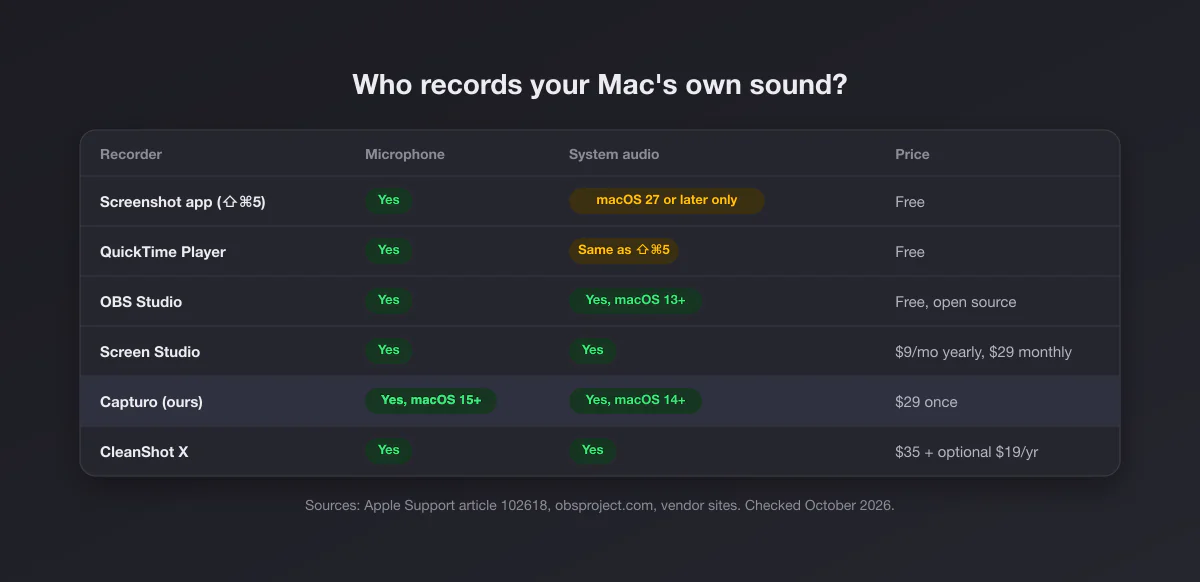
The comparison table
| Recorder | Price (Oct 2026) | System audio | Webcam overlay | Editing | Best for |
|---|---|---|---|---|---|
| Screenshot app (⇧⌘5) | Free | macOS 27+ only | No | Trim in the thumbnail | Quick recordings |
| QuickTime Player | Free | Same as above (uses the same toolbar) | Workaround only | Trim, split, rotate | Recording plus a basic trim |
| OBS Studio | Free, open source | Yes, macOS 13+ | Yes | None, record only | Streaming, complex scenes |
| Screen Studio | $29 a month, or $9 a month billed yearly | Yes | Yes | Auto zoom, cursor smoothing | Polished product demos |
| CleanShot X | $35 once, optional $19/yr updates | Yes | Yes | Built-in video editor | All-round capture tool |
| Capturo (ours) | $29 once | Yes, macOS 14+ | Webcam bubble | Composed live over a gradient, auto zoom (beta) | Short framed clips |
1. The Screenshot app: free, and finally with sound on macOS 27
Press ⇧⌘5. The toolbar offers Record Entire Screen, Record Selected Portion, and since macOS Tahoe 26, Record Selected Window. Options let you pick a microphone, show mouse clicks, set a timer, choose where the file goes (the Desktop by default) and, on Tahoe 26 and later, record in SDR (H.264) or HDR (HEVC). Stop with the button in the menu bar or ⌃⌘Esc.
It is the right recorder for most people most of the time: zero setup, decent quality, a .mov on your desktop. What it cannot do: GIF export, webcam overlay, backgrounds, zooms, or cursor effects beyond the click circle. And on macOS 26 or older, no system audio.
2. QuickTime Player: the same recorder with a trim tool
On current macOS, QuickTime's File, New Screen Recording simply opens the Screenshot toolbar described above, so recording capabilities (including the audio situation) are identical. Our QuickTime screen recording guide walks through it. QuickTime earns its place afterwards: open the recording and use Edit, Trim (⌘T), split clips, or export at a lower resolution. Our Mac screenshot guide covers the still side of the same toolbar.
3. OBS Studio: free and powerful, not friendly
OBS is the free answer when you need everything: multiple sources, webcam, scenes, streaming, and separate audio tracks. Since OBS 28 it uses Apple's ScreenCaptureKit, and on macOS 13 Ventura and later it can capture desktop audio or a single app's audio natively, no virtual driver needed.
The price is time. OBS is built for streamers; recording a 30-second bug report through scenes, sources and output settings feels like using a mixing desk to play a song. It also does nothing to make a recording look good: no backgrounds, no zooms. Great tool, wrong one for quick clips.
4. Screen Studio: the demo-video specialist
Screen Studio's signature is automatic: it zooms in where you click, smooths the cursor, and frames everything on a background, so a raw recording becomes a product video. It records your Mac's sound, webcam and microphone. It is Mac only and recommends macOS 13.1 or later.
The trade-off is cost. Screen Studio is $29 a month, or $9 a month billed yearly ($108 a year), and its site says one-time licenses are no longer sold to new buyers. If you publish product demos every week, it pays for itself. If you record occasionally, it is expensive.
5. CleanShot X: recording inside an all-round tool
CleanShot X records the screen with computer audio, records GIFs, includes a video editor, and does everything on the screenshot side too (scrolling capture, OCR, cloud links). At $35 once with optional $19 renewals for updates, it is the best value if you want one app for both stills and video. It needs macOS 13 or newer.
6. Capturo: ours, for clips that look finished
Disclosure: we make Capturo. Press ⇧⌘9 and it records the screen or an area with system audio, composed live over a gradient background with rounded corners, so there is no editing step to make it presentable. Settings add an optional webcam bubble, microphone (macOS 15+) and auto-zoom on clicks (beta). The result is an MP4; GIFs come from a recording: Convert Video to GIF makes a 12 fps, 960 px wide GIF from clips up to 45 seconds. Your logo can go on the margin if you want. It is native, about 2 MB, runs on macOS 14 or later (Apple Silicon or Intel), and costs $29 once with a 30-day money-back guarantee. Screenshots work without a license (with a small watermark); recording needs the license, and there is no trial. Download Capturo.
Where Capturo is the wrong pick: no cursor smoothing, no timeline editor, no multi-track editing, no streaming, and its auto zoom is a beta without an editor to adjust it. For long tutorials or product videos built around zooms, Screen Studio or a real editor fits better; our Screen Studio alternatives page compares the zoom tools, and Camtasia alternatives covers the editors. For streaming, OBS. And if you are on macOS 27 and only need the sound, the free built-in recorder now does that.
What it costs over three years
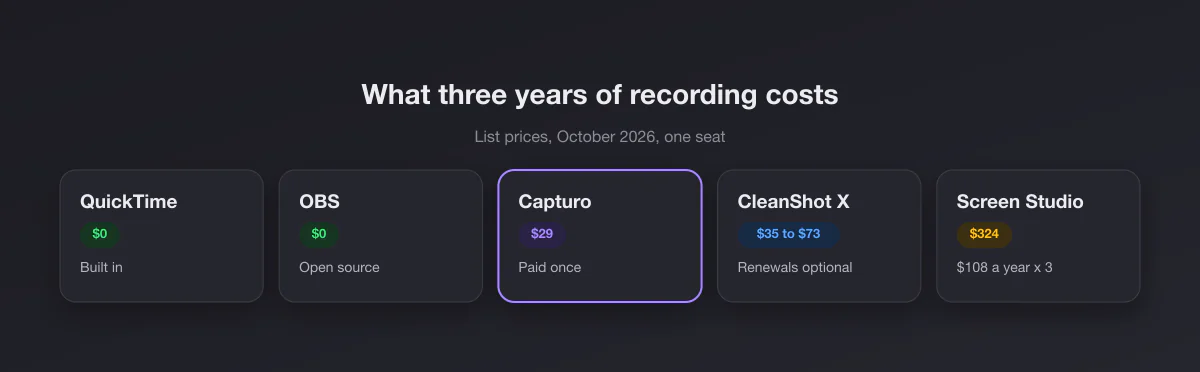
Simple arithmetic on list prices for one person, October 2026: QuickTime and OBS $0; Capturo $29; CleanShot X $35 if you never renew updates, $73 if you renew twice; Screen Studio $324 on the yearly plan. Subscriptions are not wrong, they just need to earn their keep every year.
Which one, by situation
| You need… | Use |
|---|---|
| A quick recording with your voice | ⇧⌘5, free |
| The Mac's sound, on macOS 27 | ⇧⌘5, Options, Include System Audio |
| The Mac's sound, on macOS 26 or older, for free | OBS Studio |
| Streaming or several sources at once | OBS Studio |
| Product demos with zoom and smooth cursor | Screen Studio |
| One app for screenshots and recordings | CleanShot X |
| Short clips that look finished, paid once | Capturo |
The right recorder for the job
Most recordings fall into a handful of jobs, and each one has a natural fit.
- Bug reports. Short, silent or with a sentence of narration, sent to a tracker or chat. The built-in recorder is enough; a GIF (CleanShot X records one, Capturo converts a short clip) plays inline in more places than a
.movdoes. - Pull request and changelog clips. Five to twenty seconds showing a change. Looks matter here, because the clip represents the product. A recorder that composes the background for you saves the editing pass.
- Tutorials and courses. Long, narrated, often with a webcam bubble and later edits. Screen Studio, CleanShot X or OBS plus an editor. Capturo has the webcam bubble but no editor, so it is not built for this.
- Recording a call or a webinar. You need system audio for the other voices, so macOS 27's built-in option, OBS or a paid recorder. Ask for consent first: in many places recording people without telling them is illegal, whatever the software allows.
- Streaming. OBS, without discussion.
Recording tips that apply to every tool
- Record a window, not the screen. A window recording has no notifications, no menu bar clutter and a smaller file. On Tahoe 26 and later the built-in toolbar does it natively.
- Turn on Do Not Disturb first. A banner with a private message in the middle of a demo is the classic mistake.
- Use headphones with a microphone when recording your voice and the Mac's sound together, or the speakers bleed into the mic.
- Some apps refuse to be recorded. Apple notes that apps such as the Apple TV app may not let you record their windows; you get black frames, and no recorder on this list gets around that.
- Short beats long. A 20-second clip or GIF in a bug report or chat gets watched; a five-minute video gets skipped.
And for the stills
Most people who record also need screenshots, and the same ⇧⌘5 toolbar handles both. Our Mac screenshot shortcuts list every key combination, the best screenshot app for Mac roundup compares the paid options, and the free screenshot beautifier adds a background and rounded corners to a single image in your browser.