The short answer
If you want Screen Studio's signature effect (automatic zoom that follows your clicks, plus a smoothed cursor) for less money, look at Cap, which does both and sells a $58 lifetime desktop license, or FocuSee, which also runs on Windows. If you mostly record short clips and want them to look framed and finished without editing, Capturo, our own Mac app, does that for $29 once, with a webcam bubble and a beta auto zoom on clicks, but no cursor smoothing or timeline editor. If you need it free, OBS Studio records anything, with none of the polish.
And if auto zoom on long demos is the whole reason you opened Screen Studio in the first place, keep paying for it. Nothing below does that specific job better; several do it cheaper and a little rougher.
What Screen Studio costs now
Screen Studio's own site lists two plans, both with every feature: $29 per month billed monthly, or $9 per month billed yearly, which works out to $108 a year. It is a subscription. It runs on macOS only, and the site says there are no near-future plans for Windows. (Prices checked on screen.studio in October 2026.)
What that money buys is real: automatic zoom that looks at where you clicked and zooms in on those moments, cursor smoothing that turns a shaky mouse path into a steady glide, MP4 export up to 4K at 60 fps, looping GIFs up to 1080p, shareable links for videos up to 30 minutes, AI captions and noise reduction. That is a lot of product. The question this page answers is how much of it you actually use.
The seven alternatives at a glance
| Tool | Price (Oct 2026) | Model | Platforms | Auto zoom | Best for |
|---|---|---|---|---|---|
| Screen Studio | $9/mo billed yearly, $29 monthly | Subscription | Mac | Yes | Polished product demos |
| Capturo (ours) | $29 once | Lifetime license | Mac | On clicks (beta) | Short framed clips |
| Cap | Free local, $58 lifetime desktop, or $29/yr | Both | Mac, Windows | Yes | Closest Screen Studio clone |
| FocuSee | $49.99/yr, or $199.99 lifetime (Advanced) | Both | Mac, Windows | Yes | Screen Studio style on Windows |
| CleanShot X | $35 once (1 year of updates), Pro $10/mo | Both | Mac | Smart zooms in Studio Mode | Screenshots plus recording in one app |
| Tella | From $13/user/mo billed yearly | Subscription | Mac, Windows, Chrome | Yes | Browser-first demos with links |
| Loom | Free (25 videos, 5 min), Business ~$15/user/mo yearly | Subscription | Mac, Windows, Chrome | No | Async messages to a team |
| OBS Studio | Free | Open source | Mac, Windows, Linux | No | Raw recording and streaming |
Prices are list prices from each vendor's pricing page in October 2026. FocuSee in particular shows discounted prices next to much higher "regular" ones, so check the current price before buying.
What three years actually cost
Monthly prices hide the real comparison. Over three years, which is a normal life for a tool like this, the gap between subscription and one-time gets large.
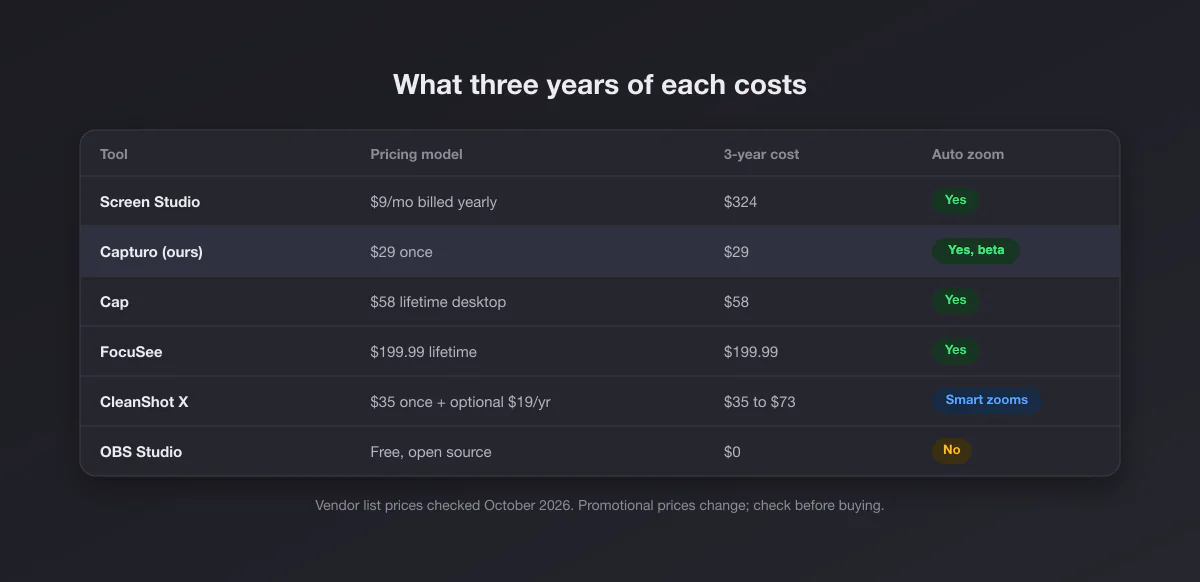
Screen Studio on yearly billing comes to $324; on monthly billing it would be $1,044. That is fine if it saves you an hour of editing per video and you publish every week. It is a lot for someone who records a demo a month.
1. Cap, the closest copy
Cap is open source and is the alternative that most directly copies Screen Studio's look. Its Studio Mode records locally at up to 4K 60 fps with an editor built in, generates automatic zooms from your recorded clicks (or lets you draw your own between 1x and 4.5x), smooths the cursor, adds click effects, and puts the recording on gradients, wallpapers or solid backgrounds. Screen, camera and microphone each get their own track, and camera layouts include split and floating cards.
Pricing: a free plan for local recordings (no commercial use, shareable links up to 5 minutes), a Desktop license at $29 a year or $58 lifetime that adds commercial rights and the full Studio Mode editor, and Cap Pro at $12 per user per month for unlimited cloud sharing and AI titles and summaries. It runs on Mac and Windows.
Pick it if you want auto zoom and cursor smoothing without a subscription. Skip it if you want the most refined result: Screen Studio still has the longer track record on the motion itself.
2. Capturo, our app, for short framed clips
Disclosure: this is ours, so read it with that in mind. Capturo is a native Mac app of about 2 MB that does screenshots and screen recording. Press ⇧⌘9 and it records the screen or an area with system audio, composed live over a gradient background with rounded corners, so the clip already looks framed when you stop. Settings add an optional webcam bubble, microphone (macOS 15+) and auto-zoom on clicks (beta). The recording is an MP4; GIFs come from a recording: Convert Video to GIF makes a 12 fps, 960 px wide GIF from clips up to 45 seconds. It also annotates screenshots (arrows, text, highlight, pixelated blur), stamps your logo on exports and costs $29 once (two Macs) with a 30-day money-back guarantee. No account, no cloud: files stay on your Mac. Against Screen Studio's $108 a year, it pays for itself in the first quarter.
Where Screen Studio is still ahead: its zoom has years of tuning behind it, Capturo's auto zoom is a beta that zooms on clicks with a simple glide, and Capturo has no cursor smoothing, no timeline editor to adjust zooms afterwards, no captions and no share links. It runs on macOS 14 or later only. If your videos are five-minute walkthroughs where the zoom carries the story, Cap or Screen Studio is the right tool. If they are 15 second clips for a changelog, a pull request, a tweet or a support reply, the framed background is most of what Screen Studio was giving you, at a fraction of the price. Download Capturo; recording unlocks with the license (there is no trial). If you are still deciding what kind of recorder you need, our best screen recorder for Mac roundup covers the free options too.
3. FocuSee, the Windows answer
FocuSee, from iMobie, is the main Screen Studio style recorder that also runs on Windows. It auto zooms on clicks and typing, styles the cursor, adds camera layouts, backgrounds, AI captions and an annotation set with spotlights and blur. Its store lists Standard at $49.99 a year (or $19.99 monthly) and an Advanced lifetime license at $199.99, which covers FocuSee 2.x on up to five computers. Note that "lifetime" there means the current major version.
Pick it if you are on a PC, or switch between a PC and a Mac. Skip it if you are Mac only and price is the reason you are leaving: Cap is cheaper for the same core trick.
4. CleanShot X, if you also take screenshots all day
CleanShot X is primarily a screenshot app, and its recording got serious with Studio Mode, which adds animated smart zooms to parts of a recording. The license is $35 once, including a year of updates (renewal optional at $19 a year), and CleanShot Pro is $10 per user per month for unlimited cloud. Mac only. It is the right move when you want one app for screenshots, scrolling capture, OCR and recordings, and the recordings are secondary. Its zooms are applied in an editor afterwards, not as hands-off as Screen Studio's.
5. Tella, for browser-first demos
Tella records from a native Mac or Windows app or a Chrome extension, applies auto zoom and backgrounds on every paid plan, and is built around sharing a link. Pro is $13 and Premium $19 per user per month on annual billing. It suits people who live in links and pages, such as founders recording sales demos, more than people who export files.
6. Loom, when nobody cares about polish
Loom is a different product: fast async video messages with your face in a bubble and a link on the clipboard. The free Starter plan allows 25 videos of up to 5 minutes; Business is $18 per user per month (around $15 billed yearly). No zoom, no gradient. If your Screen Studio videos are really just updates for teammates, Loom is quicker and the free plan may be enough.
7. OBS Studio, free and raw
OBS is free, open source and runs on Mac, Windows and Linux. It records anything, mixes multiple sources and streams. It does none of the presentation: no auto zoom, no cursor smoothing, no backgrounds. On a Mac, capturing system audio works with OBS's macOS screen capture source on recent macOS versions; the tradeoff is setup time. Pair it with a free editor if you want to add zooms by hand, which is exactly the labour Screen Studio charges to remove.
Which one, by situation
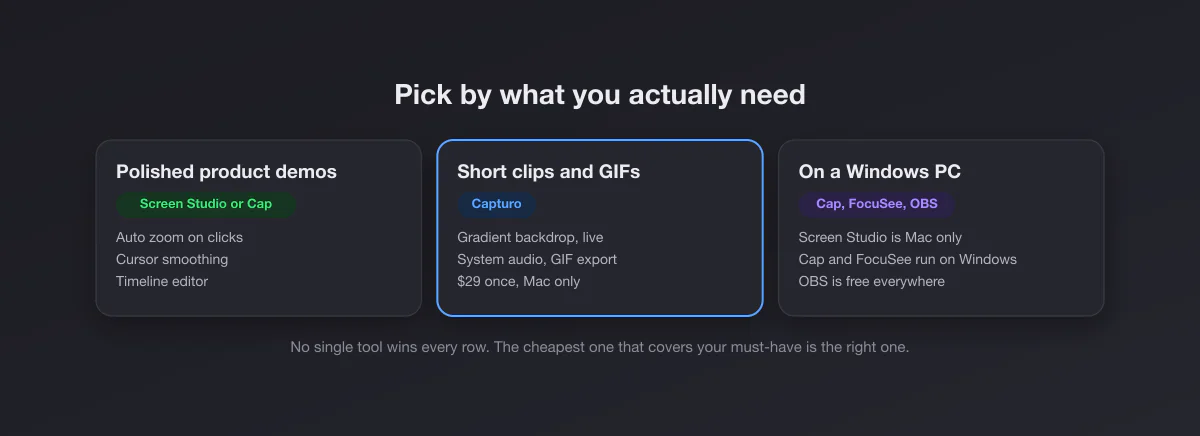
| You… | Take |
|---|---|
| Publish polished product demos weekly and the zoom matters | Screen Studio |
| Want auto zoom without a subscription | Cap ($58 lifetime) |
| Are on Windows | FocuSee or Cap |
| Record short clips and GIFs for changelogs, PRs and social posts on a Mac | Capturo ($29 once) |
| Take screenshots all day and record now and then | CleanShot X |
| Send quick updates to a team | Loom |
| Need free, and have time to set it up | OBS Studio |
The features people think they need
Most of Screen Studio's appeal comes from three effects. It is worth separating them, because the alternatives copy them unevenly.
- Background and rounded corners. The cheapest effect to copy and the one that does the most work on short clips. Capturo, Cap, FocuSee and Tella all do it.
- Automatic zoom. The hard one. Cap, FocuSee and Tella generate zooms from clicks; CleanShot X adds smart zooms in its editor; Capturo has a beta auto zoom on clicks with no editor to tweak it afterwards. OBS does not.
- Cursor smoothing. Cap and FocuSee have it. If your hand is steady and the clip is short, you will not miss it.
Before you pay for the hard one, watch your last three Screen Studio exports and count the zooms. If there are two in a 20 second clip, a static framed recording would have carried the same message.
Where the built-in Mac recorder fits
macOS already records the screen with ⇧⌘5, for free, and it is fine for a raw capture of a window or area. What it does not do: add any background or export a GIF, and on macOS 26 and earlier it records only the microphone, not the Mac's own audio (Apple's support article, published September 14, 2026, says macOS 27 Golden Gate or later adds an "Include System Audio" option). Our guide to QuickTime screen recording covers that path step by step, and Mac screenshot shortcuts covers the panel and its options. If you also edit longer tutorials, see the Camtasia alternatives. For a single still that needs the Screen Studio look, our free screenshot beautifier adds the gradient, padding and corners in the browser.
Switching without losing work
Screen Studio projects do not open in any of the alternatives, so export what you still need as MP4 before your plan lapses. Recordings you already exported are ordinary video files and stay yours. Then try the replacement on the next real video rather than a test clip: a real deadline shows you in one session whether you miss the auto zoom.