The short answer
- Open the page and press F12 (or Ctrl + Shift + I; on a Mac Cmd + Option + I) to open DevTools.
- Press Ctrl + Shift + P (Mac: Cmd + Shift + P) to open the Command Menu.
- Type screenshot and choose Capture full size screenshot.
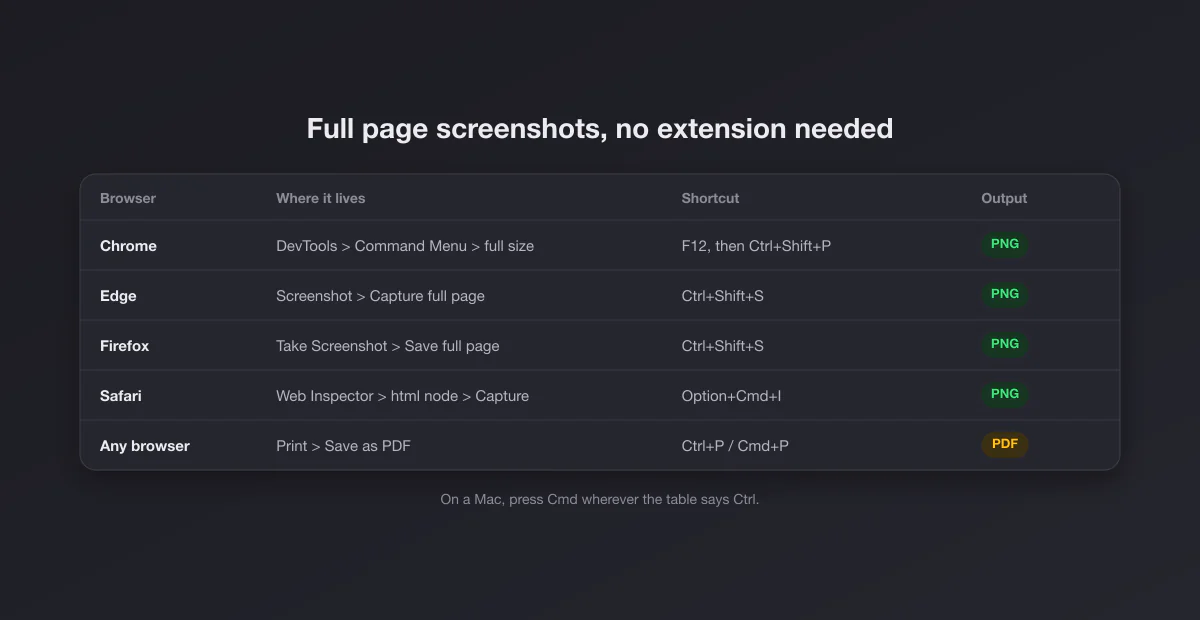
Chrome saves a PNG of the whole page, top to bottom, to your Downloads folder. No extension, no account, nothing uploaded. The Command Menu and its screenshot commands are documented in Google's Chrome DevTools Command Menu reference.
The four screenshot commands in Chrome
Typing "screenshot" in the Command Menu shows four options. They are worth knowing apart, because the other three are often a better fit than the full page.
| Command | What it captures | When to use it |
|---|---|---|
| Capture full size screenshot | The entire page, including everything below the fold | Archiving an article, a landing page, a design review |
| Capture screenshot | Only the visible part of the page, without the browser's toolbars | A clean viewport shot with no tabs or address bar |
| Capture area screenshot | A rectangle you drag | Like a snipping tool, but at the page's real resolution |
| Capture node screenshot | The element selected in the Elements panel | One card, one chart, one table, perfectly trimmed |
Node screenshot is the hidden gem: right click anything on the page, choose Inspect, adjust the selection in the Elements panel to the container you want, then run the command. You get exactly that element, edge to edge, with nothing to crop.
A full page screenshot as a phone would see it
For a mobile version of the page, turn on device mode first: with DevTools open press Ctrl + Shift + M (Mac: Cmd + Shift + M), choose a device like an iPhone or Pixel from the toolbar at the top, reload, and then use the three dot menu at the right of that device toolbar, which has Capture full size screenshot too. The result is the full mobile layout at the device's pixel ratio, which is how designers produce those tall phone mockups.
Microsoft Edge: a button, no DevTools
Edge has its own capture tool built into the browser. Press Ctrl + Shift + S, or open the ... menu and choose Screenshot (called Web capture in older versions), then pick Capture full page. A preview opens where you can draw on it, copy it, or save it. Microsoft describes the flow in its Edge screenshot guide. Because Edge is built on the same engine as Chrome, the DevTools method above works in Edge as well.
Note the clash: on Windows, Win + Shift + S opens the system Snipping Tool, and Ctrl + Shift + S inside Edge opens Edge's own tool. Different keys, different tools, and only Edge's can scroll.
Firefox: built in, the simplest of all
Firefox has the most direct version. Right click an empty part of the page and choose Take Screenshot, or press Ctrl + Shift + S (Mac: Cmd + Shift + S). In the top right corner click Save full page, then download or copy. According to Mozilla's Take screenshots in Firefox help page, the download goes to your normal Firefox download folder. You can also click any element on the page to capture just that block, the same idea as Chrome's node screenshot without opening DevTools.
Safari on a Mac: through the Web Inspector
Safari hides it a little deeper. First turn on the developer features: Safari > Settings > Advanced, tick Show features for web developers (older versions say Show Develop menu in menu bar). Then open the page, press Cmd + Option + I, find the <html> line at the top of the Elements tab, right click it and choose Capture Screenshot. Safari saves the whole element, which for <html> means the whole page.
The no-tools alternative in Safari is File > Export as PDF, which saves the entire page as one long PDF page. On an iPhone, take a normal screenshot in Safari, tap the thumbnail, and switch to the Full Page tab at the top: you get the whole page as a PDF.
The universal fallback: print to PDF
Every browser can print a page to PDF with Ctrl + P (Mac: Cmd + P) and the Save as PDF destination. It is not an image, which is often an advantage: the text stays selectable and searchable, links keep working, and file sizes are small. The drawback is that print stylesheets change the layout, hiding navigation and sometimes images. For "what did this page say", PDF wins. For "what did this page look like", use one of the image methods above.
Pages that come out cut off, and why
Here is the part most guides skip. A full page capture works by asking the browser to render the document at its full height. Some pages are not built as one tall document, and for them every method above fails in the same way.
- Web apps with their own scroll area. Gmail, Slack, Notion, Google Docs, dashboards: the document is exactly one screen tall, and the content scrolls inside a box. The capture faithfully returns one screen. The workaround is the node screenshot on the scrolling container, which sometimes works, or the app's own export (print, PDF, share).
- Lazy loaded images. Images that only load when you scroll to them come out blank or grey below the fold. Scroll slowly to the bottom of the page first, then scroll back up and capture.
- Sticky headers and pop-ups. Cookie banners, chat bubbles and fixed headers appear once, often in the middle of the image. Close them before capturing.
- Infinite scroll. Feeds that load more as you go only capture what has loaded. There is no "bottom" to capture.
- Extremely long pages. Very tall captures can fail or be truncated because the image gets too large to render in one piece. Split the job with area screenshots, or use print to PDF.
| Problem | What you see | Fix |
|---|---|---|
| App with inner scroll | Only one screen captured | Node screenshot of the container, or the app's export |
| Lazy loading | Empty boxes lower down | Scroll to the bottom first, then capture |
| Sticky header or banner | Bar floating mid page | Dismiss it, or delete it in the Elements panel |
| Very long page | Error or cut off image | Area screenshots in parts, or print to PDF |
The deleting trick deserves a line: in DevTools you can right click any annoying element in the Elements panel, choose Delete element, and it disappears until you reload. It is the cleanest way to remove a chat widget from a capture.
Chrome on a phone
On Android, recent versions of Chrome include a long screenshot option in the share menu: tap the share button, choose Long screenshot, and drag the handles to choose how much of the page to include. Many Android phones also have their own scrolling capture: take a normal screenshot and look for a Scroll capture or Capture more button in the preview.
On an iPhone, Chrome does not offer this, but iOS does for Safari: take a screenshot, tap the thumbnail and choose Full Page. The result is a PDF of the entire page, which you can save to Files.
Getting a sharper image
Chrome captures at the screen's pixel density. On a Retina Mac or a high resolution Windows laptop that is already double resolution, which is sharp but large: a long article can be several thousand pixels wide once doubled and tens of thousands tall. Two adjustments help.
- Higher resolution for print or zooming: in device mode, choose Responsive, then set the device pixel ratio (DPR) to 2 or 3 in the toolbar before capturing.
- Smaller files for sharing: capture as usual, then convert the PNG to JPG or crop the parts you do not need. A full page PNG with photos on it can easily pass 10 MB.
Width also matters. The capture uses the current window width, so a narrow window gives you the tablet or mobile layout. Resize the window, or set an exact width in device mode, before capturing.
Do you need an extension?
For the occasional capture, no: everything above is built in. Extensions earn their place when you capture full pages every day, want a one click button, or need the capture to stitch content that sits inside a scrolling box. If you install one, check what it can read: a screenshot extension asks for permission to see every site you visit, so pick a reputable one with a clear privacy policy.
Full page captures outside the browser
System screenshot tools only see what is on the screen, so they cannot scroll a page. Windows has no built in scrolling capture (our Windows screenshot guide covers what it does have), and macOS neither, as the Mac screenshot guide explains. For web pages, the browser methods on this page are the right tool.
Cleaning up the result
Full page captures are tall, and usually you only need part of them. Crop with the built-in tools (on Windows, on a Mac), and if the capture goes into a slide or a post, our screenshot beautifier adds padding, a background and a browser style frame without uploading the image anywhere.