The short answer
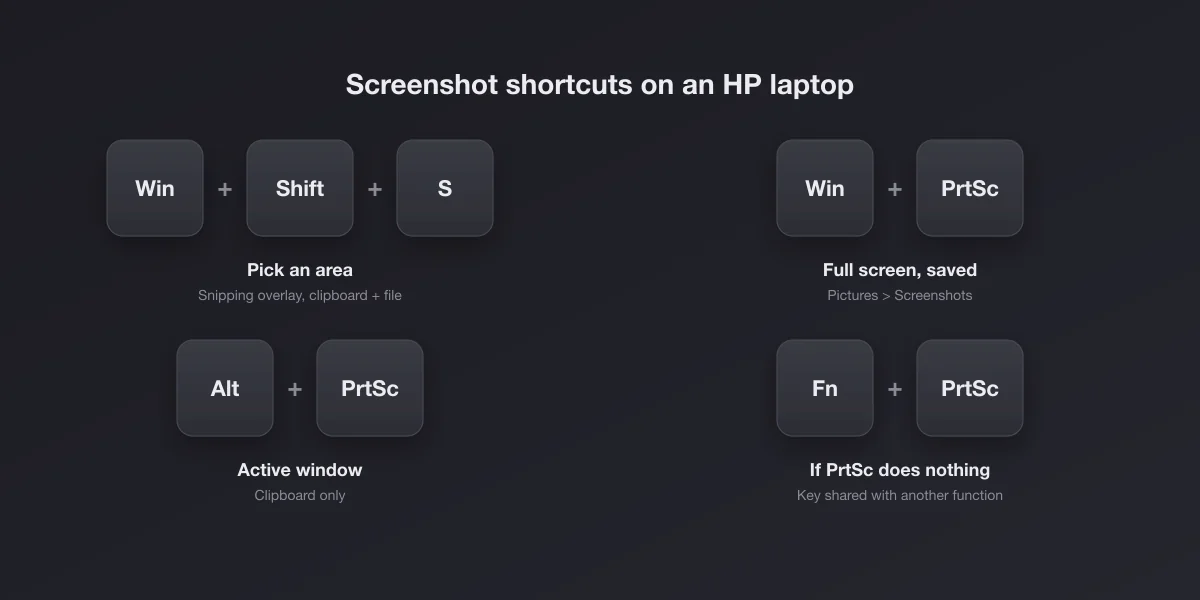
Press Win + Shift + S and drag over what you want. It works on every HP laptop running Windows 10 or 11, whatever the keyboard looks like, because it does not use the Print Screen key at all.
For a full-screen image saved straight to a file, press Win + PrtSc. If that does nothing, try Win + Fn + PrtSc: on many HP models the key is shared and needs Fn. The file goes to Pictures\Screenshots.
Every shortcut, and what each one does
| Shortcut | Captures | Where it goes |
|---|---|---|
| Win + Shift + S | Area, window, full screen or freeform | Clipboard; on Windows 11 also saved to Pictures\Screenshots |
| Win + PrtSc | Full screen (the screen dims for a moment) | Saved as PNG in Pictures\Screenshots |
| PrtSc alone | On current Windows 11, opens the snipping overlay; on Windows 10, copies the full screen | Windows 10: clipboard. Windows 11: same as Win + Shift + S |
| Alt + PrtSc | Only the active window | Clipboard only |
| Win + Alt + PrtSc | The active game or app, through Game Bar | Videos\Captures |
| Power + Volume down | Full screen, on x360 convertibles in tablet mode | Pictures\Screenshots |
If a shortcut with PrtSc fails, add Fn to it before concluding anything. That single habit fixes most HP "screenshot not working" searches.
Where is Print Screen on an HP keyboard?
Look at the top row, towards the right, for a key labelled prt sc, prt scr or a small camera-and-frame icon. HP has moved it around between generations, so instead of a promise per model, here is how it usually shows up on each line and what to try:
| Line | What you will usually see | Try first |
|---|---|---|
| HP 14 / 15 / 17, Pavilion | prt sc in the top row near the right, sometimes sharing a key with another function | PrtSc, then Fn + PrtSc |
| Envy and Envy x360 | Compact top row with media icons; prt sc often near Delete, sometimes as a second label | Fn + PrtSc if the plain key does nothing |
| Spectre x360 | Slim keyboard, top row full of action keys; on recent models the label can sit on a shared key | Win + Shift + S is the reliable route |
| Victus and OMEN (gaming) | Full-size or near full-size layout, prt sc in the top-right cluster | PrtSc; in games, Win + Alt + PrtSc |
| EliteBook, ProBook, ZBook (business) | Traditional layout, prt sc in the top row toward the right, Fn lock indicator on the keyboard on many models | PrtSc; if the Fn lock light is on, check it first |
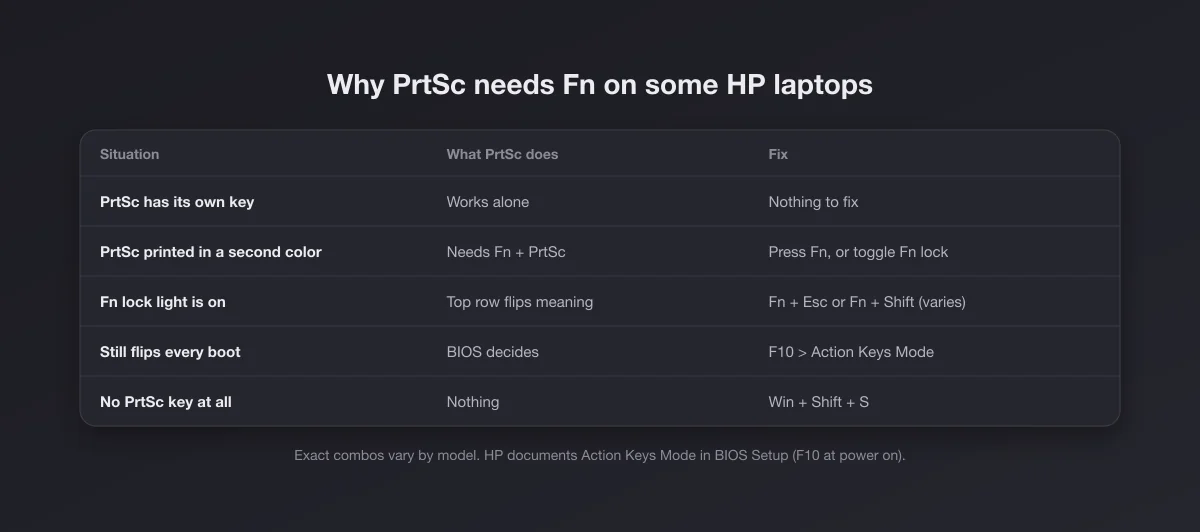
The rule that matters more than any position: if the label is printed in a different colour or in a box, it is a second function and needs Fn. If it is the only label on its key, it works alone.
Why PrtSc needs Fn (and how to stop it)
HP ships most laptops with Action Keys Mode enabled. In that mode the top row does what the icons say (volume, brightness, mute) and the classic function of each key needs Fn. When Print Screen shares a key with one of those actions, it falls into the same trap.
You have three ways out, from quickest to most permanent:
- Press Fn every time. Fn + PrtSc, or Win + Fn + PrtSc to save a file.
- Toggle Fn lock. Depending on the model, Fn + Esc or Fn + left Shift flips the top row between actions and function keys, and a small light on the Fn or Esc key usually shows the state. If one combination does nothing, try the other.
- Change it in the BIOS. Turn the laptop off, power it on and tap F10 repeatedly to enter BIOS Setup. Under System Configuration, find Action Keys Mode and disable it. From then on the top row behaves like F1 to F12, and the media actions need Fn instead. This is the fix that survives restarts.
If none of that changes anything, the key itself may be remapped or claimed by another app. Our Print Screen not working guide walks through the software causes in order.
PrtSc on Windows 11 opens the snipping overlay now
On an up-to-date Windows 11 laptop, pressing PrtSc on its own no longer silently copies the whole screen: it opens the same overlay as Win + Shift + S. Microsoft switched that on by default. If you prefer the old behaviour, go to Settings, Accessibility, Keyboard and turn off Use the Print screen key to open screen capture. Many people who think their HP's key "changed" are actually seeing this Windows setting.
The Snipping Tool: delay, annotation and recording
Open Snipping Tool from the Start menu when the shortcut is not enough. Four things it adds:
- A delay of 3, 5 or 10 seconds, the only practical way to capture a dropdown menu that closes when you press a key.
- Freeform mode for odd shapes.
- Annotation: pen, highlighter, ruler and crop before saving.
- Screen recording on Windows 11, including a selected area.
On Windows 11 it also saves every capture automatically to Pictures\Screenshots, which removes the classic "I took it but there is no file" problem. You can switch that off in the tool's settings if you only want the clipboard.
Where HP screenshots are saved
HP adds nothing of its own here; it is pure Windows. Win + PrtSc and the Windows 11 Snipping Tool save to Pictures\Screenshots. Plain PrtSc on Windows 10 and Alt + PrtSc only fill the clipboard, so there is no file until you paste. Game Bar captures go to Videos\Captures. If OneDrive backup is on, Pictures may live inside OneDrive, which is the most common reason the folder seems to "move". Full details in where screenshots go on Windows. The same shortcuts on other keyboards: Dell and Lenovo.
HP x360 convertibles, tablets and the pen
Fold an Envy x360 or Spectre x360 into tablet mode and the keyboard is disabled. Press Power + Volume down together; the screen flashes and the file lands in Pictures\Screenshots. Many HP pens also have buttons that can be assigned an action in the HP Pen Control app, and a screen snip is one of the useful choices if your pen and model support it. With the pen, you can also start a snip from the Snipping Tool and draw the region directly.
HP Chromebooks are different
An HP Chromebook runs ChromeOS, not Windows, so none of the shortcuts above apply. Use Ctrl + Show windows for the full screen (the Show windows key has a rectangle with two lines, in the top row) and Ctrl + Shift + Show windows for an area, a window or a recording. Files go to Downloads.
Gaming on a Victus or OMEN
Full-screen games can take exclusive control of the display, and then Print Screen captures nothing or a black frame. Win + Alt + PrtSc uses Game Bar and works where the normal shortcut does not; Win + G opens Game Bar for video clips. Switching the game to borderless windowed brings the normal shortcuts back. Black screenshots of streaming video are deliberate copy protection, not a laptop fault.
A 30-second checklist when nothing works
- Try Win + Shift + S. If the overlay appears, Windows capture is fine and the problem is only the PrtSc key.
- Add Fn. Fn + PrtSc. If that works, it is Action Keys Mode, and the section above has the permanent fix.
- Look at the Fn lock light. If it is on, toggle it with Fn + Esc or Fn + Shift and test again.
- Paste before searching. Plain PrtSc and Alt + PrtSc never create a file. Open Paint or a chat and press Ctrl + V: the screenshot is often there.
- Close capture apps. OneDrive, Dropbox, Lightshot, Greenshot and game overlays can claim the key. Quit them one at a time and test.
- Check the external keyboard. With a USB or Bluetooth keyboard plugged in, its own PrtSc key works the same way, and it is a quick way to tell a keyboard fault from a software one.
If step 1 fails too, the issue is Windows, not HP. Restarting Explorer, or the Snipping Tool from Settings, Apps, then Repair, usually brings it back.
What to do with the screenshot next
Trim it with the Snipping Tool or Photos (our guide to cropping a screenshot on Windows covers both). If it is going into a slide, a post or documentation, the screenshot beautifier adds padding, a background and rounded corners in the browser, without uploading anything. And if a form rejects a large PNG, the PNG to JPG converter shrinks it in seconds.
The full Windows picture, beyond HP specifics, is in our complete Windows screenshot guide.