The short answer
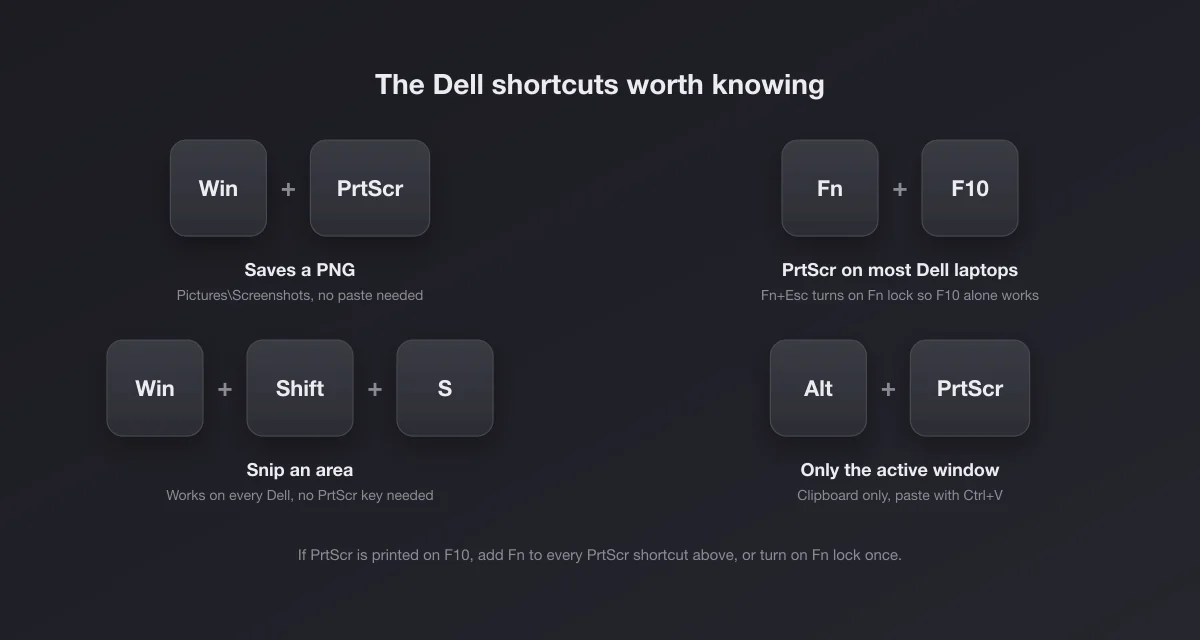
Press Win + Shift + S, drag over what you want, and paste. That works on every Dell laptop ever sold with Windows 10 or 11, including the new XPS models that have no Print Screen key printed anywhere.
If you want a file saved automatically instead, press Win + PrtScr. On most Dell laptops PrtScr is a second label on F10, so the real keystroke is Win + Fn + F10. The PNG lands in Pictures\Screenshots.
Find the Print Screen key on your Dell
Dell's own support article puts it plainly: on desktop keyboards PrtScr sits in the top right corner, and on laptops it lives on the function row, "typically requiring Fn + F10 or another function key". Look at your F10 key first. If you see a small PrtScr or PrtSc printed on it, often in a lighter colour or a box, that is your key.
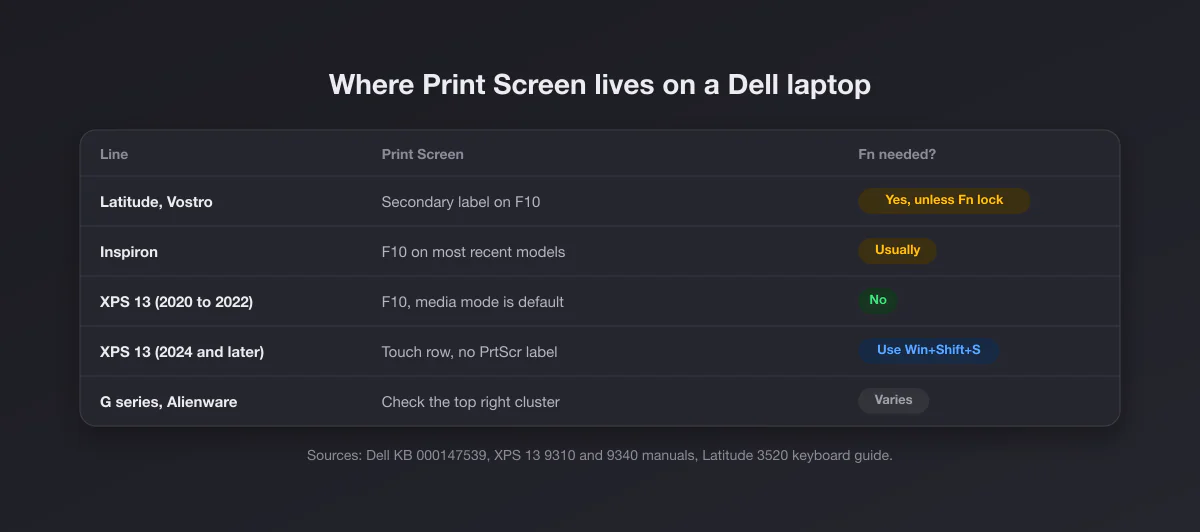
| Dell line | Where PrtScr is | What to press |
|---|---|---|
| Latitude (and Dell Pro) | Secondary label on F10 on models like the Latitude 3520 | Fn + F10, or turn on Fn lock |
| Inspiron (and Dell 14, 15, 16) | F10 on most recent models, such as the Inspiron 15 3520 | Fn + F10 |
| Vostro | Function row, usually F10 | Fn + F10 |
| XPS 13 9300, 9310 and similar | F10, and the row defaults to media mode, where F10 already means Print screen | F10 alone |
| XPS 13 9340, 9345, 9350 (touch function row) | No PrtScr label. The owner's manual lists no Print Screen shortcut | Win + Shift + S |
| G series and Alienware | Varies by model. Gaming keyboards tend to keep a fuller top right cluster | Look for the label; add Fn if it shares a key |
A note on names: in 2025 Dell started folding Inspiron, Latitude and Precision into "Dell", "Dell Pro" and "Dell Pro Max". If your new laptop says Dell Pro, read it as a Latitude for keyboard purposes. The Fn logic did not change.
Why you need Fn, and how to stop needing it
On a Dell laptop the top row has two jobs. One layer is F1 to F12; the other is volume, brightness, PrtScr and friends. Which layer you get without holding Fn depends on the model and on how it was set the last time someone touched it.
Fn lock flips the default. On Dell laptops it is Fn + Esc, and the Esc key often has a small padlock icon to remind you. Dell's Latitude 3520 guide lists it as "Fn-Key Lock", and the XPS 13 manual calls it the same thing. Press it once and the second-label functions (including PrtScr on F10) fire without Fn. Press it again to go back.
On most Dell business laptops the same choice also lives in the BIOS setup, usually under a setting called Fn Lock Options, so you can make it permanent. On consumer models the keyboard toggle is enough and it survives restarts.
The trade-off is real: if you lock the media layer, then F5 in your browser stops refreshing and becomes brightness or a keyboard light toggle. Pick whichever you press more often, and use Fn for the other.
XPS laptops with a touch function row
The 2024 and later XPS 13 models replaced the physical F row with a capacitive touch strip. It shows media icons by default and switches to F1 to F12 while you hold Fn; Fn + Esc locks whichever mode you prefer. There is no PrtScr label on it, and Dell's own keyboard shortcut table for the XPS 13 9340 does not list Print Screen at all.
So on these machines, stop looking for the key. Win + Shift + S covers region, window and full screen, and the Snipping Tool covers everything else. Dell support has suggested Fn + F10 to some owners of these models; it is worth one try, but the manual does not promise it.
If you really want a one-press capture, the cleanest route is to make the snip overlay one press away: pin the Snipping Tool to the taskbar, or use a keyboard remapper such as Microsoft PowerToys to send Win + Shift + S from a key you never use.
Every Windows screenshot shortcut, on a Dell
| Shortcut | What it captures | Where it goes |
|---|---|---|
| Win + Shift + S | Rectangle, freeform, window or full screen | Clipboard, and Windows 11 also saves a copy to Pictures\Screenshots by default |
| Win + PrtScr (add Fn if needed) | The whole screen | A PNG in Pictures\Screenshots, automatically |
| PrtScr (add Fn if needed) | The whole screen, or opens the snip bar on Windows 11 (see below) | Windows 10: clipboard. Windows 11: clipboard plus Pictures\Screenshots |
| Alt + PrtScr | The active window only | Clipboard |
| Win + Alt + PrtScr | The active window, through Game Bar | Videos\Captures |
| Power + Volume down | The whole screen, on 2-in-1 models in tablet mode | Pictures\Screenshots |
The full walkthrough of each one, including freeform snips and the delay timer, is in our guide to taking a screenshot on Windows.
Windows 11 may have changed what PrtScr does
If you press PrtScr on a Dell running Windows 11 and the screen dims with a small toolbar instead of silently copying everything, nothing is wrong with the keyboard. Windows 11 now ships with Use the Print screen key to open screen capture turned on (Settings > Bluetooth & devices > Keyboard on recent builds, Settings > Accessibility > Keyboard on older ones), which makes PrtScr behave like Win + Shift + S. Turn it off if you want the old whole-screen-to-clipboard behaviour back.
Where Dell screenshots are saved
Dell adds nothing of its own here; it is pure Windows, which means the destination depends on the shortcut:
- Win + PrtScr writes a PNG to
Pictures\Screenshots. The screen dims for a moment to confirm. - Alt + PrtScr, and PrtScr on Windows 10, only fill the clipboard. Paste with Ctrl + V into Paint, Word, an email or a chat. There is no file until you paste.
- Snipping Tool captures go to the clipboard and, on Windows 11, also to Pictures\Screenshots unless you turned automatic saving off.
- OneDrive can redirect all of this. If it is set to save screenshots, look in
OneDrive\Pictures\Screenshotsinstead.
Still can't find one? Our guide to where screenshots go on Windows covers every case, including the Pictures folder that OneDrive quietly moved. Same shortcuts, different keyboards: see the HP and Lenovo versions. If the Snipping Tool itself misbehaves, Snipping Tool not working has the repair steps.
When nothing happens
Work down this list, most common first:
- You captured, but to the clipboard. Paste somewhere before deciding it failed.
- Wrong Fn layer. Try the same shortcut with Fn, then without. Toggle Fn + Esc and try again.
- Another app grabbed the key. Dropbox, OneDrive, Greenshot, ShareX and game overlays all like to own PrtScr.
- The app blocks capture. Netflix, some banking apps and DRM video give you a black rectangle on purpose.
- Work laptop policy. A managed Latitude can have capture disabled by IT.
The long version, with fixes for each, is in Print Screen not working.
External Dell keyboards
Plugged a Dell keyboard into the laptop? Full-size Dell keyboards keep PrtScr in the top right. Some compact ones, like the KM3322W set Dell names in its support article, have no PrtScr key at all; Dell's answer there is Fn + Insert.
Dell Chromebooks are different
Dell also sells Latitude Chromebooks for schools and offices. Those run ChromeOS, not Windows, so none of the above applies. The shortcut there is Ctrl + Show windows (the key with a rectangle and two lines, above 6) for the full screen, and Ctrl + Shift + Show windows for an area. Files go to the Downloads folder.
Recording the screen instead
Need a video rather than a still? A Dell has two recorders built in, and neither needs the PrtScr key. The Snipping Tool on Windows 11 has a record mode: open it, switch to the video camera icon, pick an area, and it saves an MP4. Game Bar records the active app with Win + Alt + R and drops the clip in Videos\Captures; it records one window at a time and will not capture the desktop or File Explorer.
A page longer than the screen
No Dell shortcut captures a scrolling page, because Windows itself has none. The browser does it for you: in Chrome or Edge press F12, then Ctrl + Shift + P, type "screenshot" and choose the full size option. Edge also has a Screenshot button in its menu, and Firefox has Take Screenshot on the right click menu with a "Save full page" choice.
Does Dell ship its own screenshot app?
No. Dell's preinstalled software (SupportAssist, Dell Optimizer, the audio and display utilities) handles drivers, power and sound, not capture. Everything on this page is Windows. That is good news: the shortcuts carry over to any other Windows laptop you use later, and nothing breaks when Dell software gets updated or removed.
After the capture
To trim the edges, our guide to cropping a screenshot on Windows shows the fastest way with tools already installed. If the image is going into a slide, a post or a support ticket, the free screenshot beautifier adds padding, a background and rounded corners in the browser, and the PNG to JPG converter shrinks a heavy PNG when a form or email refuses it.
Also own a Mac? The Mac screenshot guide covers the Apple side; the shortcuts there are completely different.