The short answer
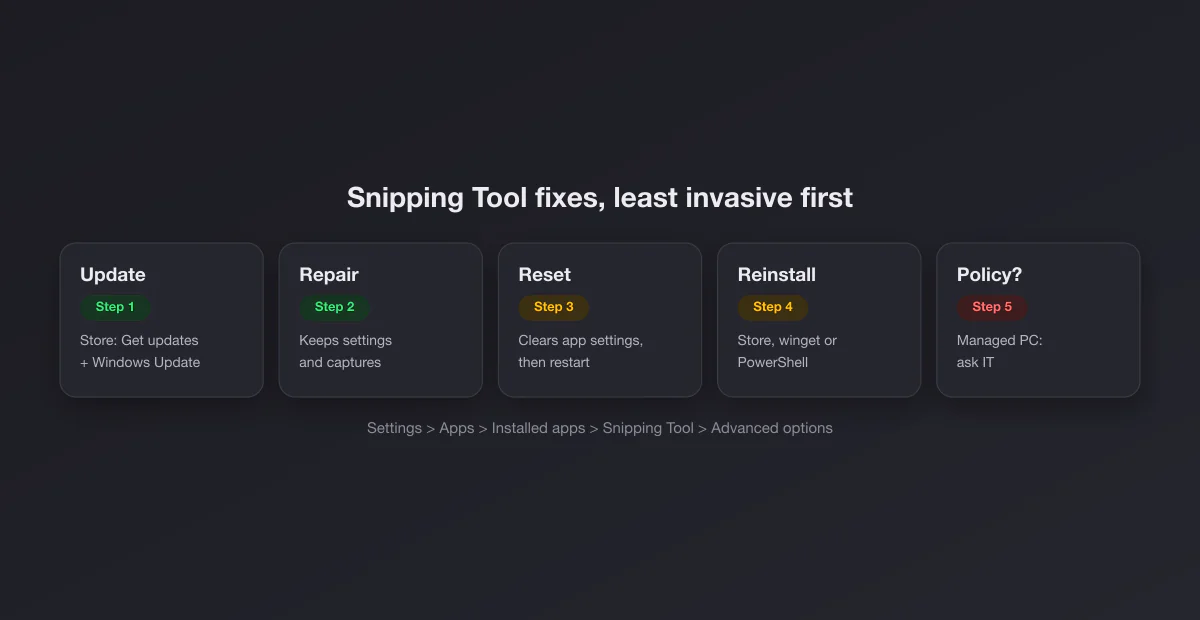
Open Settings, Apps, Installed apps, find Snipping Tool, open the three-dot menu, choose Advanced options, and press Repair. If that does not help, press Reset on the same page and restart. If it still fails, uninstall it and reinstall it from the Microsoft Store. That sequence fixes the large majority of cases, and the rest of this page covers the exceptions.
If only the Win + Shift + S shortcut misbehaves while the app opens fine from the Start menu, your problem is the shortcut layer instead: read Win+Shift+S not working.
Match the error to the fix
| What happens | Likely cause | Fix |
|---|---|---|
| "This app can't open" when launching | Damaged app package, or an outdated Windows 11 build hit by the 2021 certificate expiry | Windows Update, then Repair, then reinstall |
| Window flashes and closes | Corrupted app data | Reset |
| Opens, but New does nothing | Background permission off, or stuck overlay process | Background apps permission, then sign out and in |
| Captures are black | The captured app blocks screenshots | None, it is intentional |
| Snipping Tool is missing entirely | Removed by a debloat script or a clean install | Reinstall from the Store or with winget |
| Opens with "your administrator has blocked this" | Group Policy or device management | Ask IT; nothing local overrides it |
| Save does nothing, or files vanish | Save folder moved, deleted or synced away | Check the save location in the app's settings |
Step 1: update everything
Snipping Tool is a Microsoft Store app on Windows 11, so it updates separately from Windows. Open the Microsoft Store, go to Library, press Get updates, and let Snipping Tool update. Then open Settings, Windows Update, and install anything pending. A mismatch between an old app build and a new Windows build (or the reverse) produces exactly the "opens then closes" behavior that sends people searching. It is the least invasive step, so it goes first.
Step 2: repair the app
Microsoft's repair guide lays out the path on Windows 11:
- Start, Settings, Apps, Installed apps.
- Find Snipping Tool and click the three-dot menu next to it.
- Choose Advanced options.
- Press Repair. A check mark appears when it finishes.
Repair keeps your settings and your captures. It checks the app's files and replaces what is damaged. Test the app immediately after; if it opens, you are done.
Step 3: reset the app
Same page, one button lower. Reset deletes the app's data and returns it to the state it was in when first installed. Your saved screenshots in the Pictures folder are not touched, but app settings are: the automatic save option, the save folder, the delay you last used and similar preferences go back to defaults. After resetting, restart the computer. Snipping Tool runs a small background component for the capture overlay, and it does not always reload cleanly until you do.
While you are on the Advanced options page, also check the background apps permissions setting. If it is set to Never, the overlay that Win + Shift + S and the New button rely on may not start. Set it to Always or Power optimized.
Step 4: reinstall it
When repair and reset both fail, uninstall and reinstall. On Windows 11 you can uninstall Snipping Tool from the same Installed apps list. Then get it back in any of three ways.
The Microsoft Store. Search for Snipping Tool, or go straight to its Store listing, and press Get or Install.
winget, the Windows package manager, from Terminal or PowerShell. The Store ID is the same as in the listing URL:
winget install --id 9MZ95KL8MR0L --source msstorePowerShell re-registration, which repairs the existing package without downloading anything. Open PowerShell as administrator and run:
Get-AppxPackage -AllUsers Microsoft.ScreenSketch | Foreach {Add-AppxPackage -DisableDevelopmentMode -Register "$($_.InstallLocation)\AppXManifest.xml"}The package name is Microsoft.ScreenSketch because the modern Snipping Tool grew out of the app once called Snip & Sketch. If the command returns nothing, the package is not installed at all and the Store or winget route is the one to use.
The expired certificate: "This app can't open" in November 2021
This is the case behind many older forum threads, and it still surfaces in search results, so it is worth explaining properly. In early November 2021, Snipping Tool on Windows 11 suddenly stopped opening for many people at once, showing "This app can't open". Nobody had changed anything on their PC.
The cause was on Microsoft's side. According to Microsoft's KB5008295 release notes, the update "addresses a known issue that might prevent some users from opening or using certain built-in Windows apps or parts of some built-in apps. This issue occurs because of a Microsoft digital certificate that expired October 31, 2021." Snipping Tool was among the affected apps, along with the touch keyboard, voice typing and the emoji panel. KB5008295 was an out-of-band update released on November 5, 2021, delivered through Windows Update.
At the time, a workaround circulated widely: set the system clock back to October 30, 2021, and the app would open again. It worked, because the certificate looked valid on that date, but it was always a bad idea. A wrong system date breaks secure websites, sign-ins, sync and update checks. Today there is no reason to use it at all. Any Windows 11 installation that has received updates since November 2021 already has the fix.
So if you see "This app can't open" today, the certificate is very unlikely to be the reason. The modern equivalent is usually a damaged package or a Windows install that has not been updated in a long time. Run Windows Update, then follow steps 2 to 4 above.
Windows 10 is different
On Windows 10 there may be two tools with similar names, and that changes the fix.
| Windows 10 | Windows 11 | |
|---|---|---|
| Classic Snipping Tool | Old desktop program, part of Windows itself | Replaced by the new app |
| Snip & Sketch | Separate Store app; Win + Shift + S opens its capture bar | Merged into Snipping Tool |
| Where to repair | Settings, Apps, Apps & features, Snip & Sketch, Advanced options | Settings, Apps, Installed apps, Snipping Tool, Advanced options |
| Screen recording | No | Yes, in the same app |
On Windows 10 the classic Snipping Tool is a built-in desktop program, so it has no Repair or Reset button. If it fails, run sfc /scannow from an administrator Command Prompt, which checks and restores protected system files. The Store-based Snip & Sketch, on the other hand, is repaired and reset exactly like the Windows 11 app above. Microsoft's Snipping Tool page has separate instructions for each version.
Settings to check after a reset
Reset puts every preference back to its default, and a few of those defaults are worth reviewing straight away, because they change where your captures end up and how the app behaves. Open Snipping Tool, click the three-dot menu, and choose Settings.
- Automatically save screenshots. On by default in Windows 11, which saves a copy of every snip to the Screenshots folder. If you only ever paste snips, turning it off keeps the folder from filling up; if you rely on finding files later, leave it on.
- Screenshots folder. Confirm the path. After a reset it returns to
Pictures\Screenshots, which may not be where you had pointed it, especially if you moved it into OneDrive. - Ask to save edited screenshots. Prevents losing annotations when you close the editor window.
- Multiple windows. Opens each new snip in its own window instead of replacing the last one, handy when comparing captures.
- Print Screen key. Windows 11 can make the Print Screen key open the snipping overlay. The toggle is "Use the Print screen key to open screen capture", under Settings, Bluetooth & devices, Keyboard on recent Windows 11 builds (Settings, Accessibility, Keyboard on older ones). After a reinstall, check it is set the way you expect.
Option names shift slightly between app versions, so if one is missing, update the app from the Store first.
How to tell it is healthy again
A working Snipping Tool on Windows 11 passes four quick checks. The app opens from the Start menu without an error. Pressing New dims the screen and shows the capture toolbar with rectangle, window, full screen and freeform modes. After a capture, a preview opens in the editor or appears as a notification in the corner. And a copy appears in the Screenshots folder if automatic saving is on. If all four pass but Win + Shift + S still does nothing, the app is fine and the shortcut is the problem, which is the subject of Win+Shift+S not working.
When it opens but captures go wrong
Black captures. Streaming video, some banking apps and DRM-protected viewers block screenshots on purpose. The Snipping Tool is fine; the target window is protected. No setting fixes it.
The overlay will not draw over a game. Exclusive full screen games own the display. Switch the game to borderless windowed, or use Win + Alt + PrtScn, the Game Bar capture. For Steam games the built-in F12 works too; see where Steam screenshots are saved.
Screenshots "disappear". According to Microsoft, Windows 11's Snipping Tool saves captures automatically to the Screenshots folder. If that folder was moved, synced into OneDrive or deleted, files land somewhere unexpected. Our guide to where screenshots go on Windows tracks down every location, and the app's own settings show the current save folder.
The delay timer or a mode is missing. That is usually an old build. Update from the Store as in step 1.
Blocked by your organisation
On managed computers the Snipping Tool can be disabled deliberately. The Group Policy setting is called "Do not allow Snipping Tool to run", and device management tools can do the same. The symptom is an app that will not launch at all, or a message about your administrator. None of the steps above will get around it, and trying to is a conversation with IT you probably want to avoid. Ask them instead; there is often an approved capture tool.
Alternatives while it is broken
- Win + PrtScn saves the full screen to Pictures\Screenshots without involving the Snipping Tool at all.
- Alt + PrtScn copies only the active window to the clipboard.
- Paint can paste and crop any of those; our guide to cropping screenshots on Windows shows the fastest ways.
- For a whole web page, the browser can do it alone: see full page screenshots in Chrome.
If you would rather not depend on the Snipping Tool at all, Snipping Tool alternatives compares the free and paid replacements, and Snagit vs Snipping Tool covers the paid upgrade in detail.
The full list of methods lives in our guide to taking a screenshot on Windows, and if Print Screen itself is the trouble, Print Screen not working covers that key specifically.
After the fix
Once captures flow again, make them presentable. Copy a snip and paste it into our free screenshot beautifier for padding, a background and rounded corners, all in the browser with nothing uploaded.