The short answer
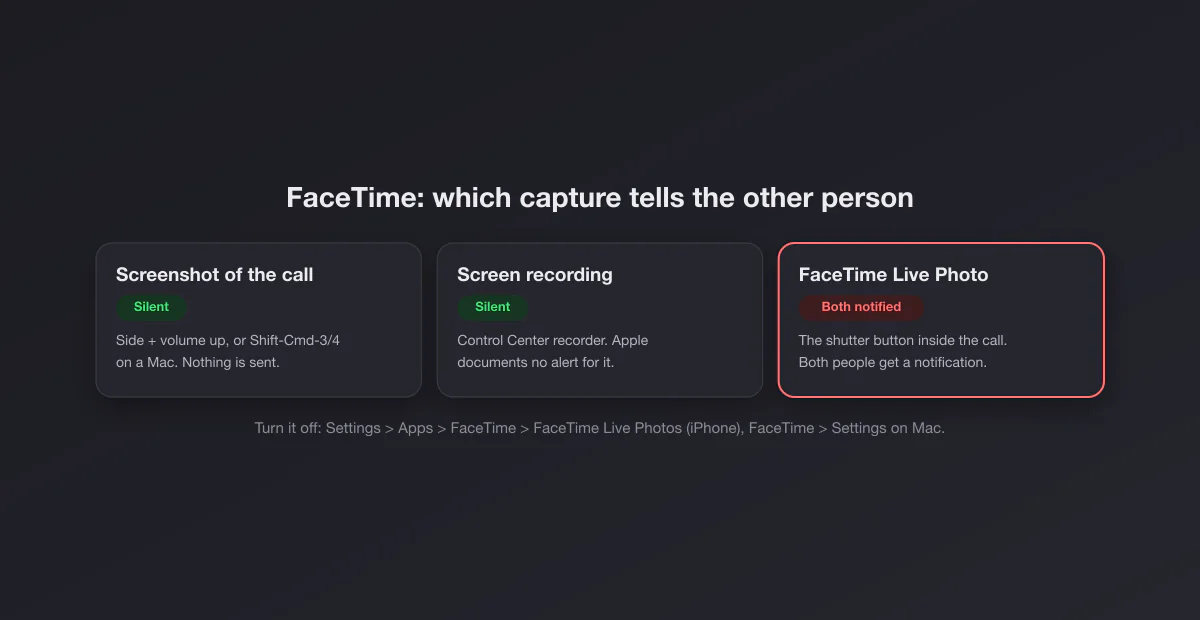
FaceTime has two ways to capture a call, and they behave in opposite ways:
- A normal screenshot (side button + volume up on iPhone, Shift + Command + 3 or 4 on a Mac) is taken by the operating system, not by FaceTime. The other person gets no notification. Apple documents no screenshot alert for FaceTime anywhere in its user guides.
- A FaceTime Live Photo (the shutter button in the call controls) is a FaceTime feature, and it does notify. Apple's iPhone User Guide says it plainly: "You both receive a notification that the photo was taken, and the Live Photo is saved in your Photos app."
So if you were told "FaceTime tells people when you screenshot", that is half true. It tells them about the Live Photo, and the Live Photo is what many people mean when they say "I took a picture during FaceTime".
Capture by capture
| How you capture the call | Does the other person find out? |
|---|---|
| iPhone screenshot: side button + volume up | No |
| Older iPhone with Home button: Home + side button | No |
| Back Tap, AssistiveTouch or Siri screenshot | No, still a system screenshot |
| Mac screenshot: Shift + Command + 3, 4 or 5 | No |
| Screen recording from Control Center | No notification documented by Apple |
| FaceTime Live Photo (shutter button in the call) | Yes: both people are notified |
The rule that makes this easy to remember: if the capture goes through FaceTime's own controls, FaceTime tells the other side. If it goes through the system (buttons, keyboard shortcuts, Control Center), FaceTime never sees it.
What a FaceTime Live Photo is, exactly
A FaceTime Live Photo is a short moving photo of the other person's video, the same format as a Live Photo from the Camera app: a still image with a few seconds of motion and sound around it. It captures the person, not your whole screen, so it is a cleaner picture than a screenshot full of call controls. It lands in your Photos library like any other Live Photo.
According to Apple's guide Take a Live Photo during a FaceTime call on iPhone (read on 2026-10-05, iOS 27 version), the steps are:
- Make sure FaceTime Live Photos is turned on in Settings > Apps > FaceTime.
- During a video call, tap the screen to show the controls.
- In a one-to-one call, tap the shutter button. In a Group FaceTime call, tap the tile of the person you want first, then the shutter button.
And then the line that answers this whole page: "You both receive a notification that the photo was taken." In a group call, the notification goes to the person in the tile you photographed, not to everyone on the call.
On a Mac, same rule
Apple's FaceTime User Guide for Mac describes the same feature with the same promise: "When you take a Live Photo of someone, or someone takes a Live Photo of you, you both receive a notification." On a Mac you select the FaceTime window (or double-click a person's tile in a group call) and click the Take Picture button. The photo saves to the Photos library, and Apple notes you should open the Photos app at least once beforehand so it has a library to save into.
A normal Mac screenshot of the FaceTime window, on the other hand, is taken by macOS and stays on your Mac, in whichever folder your screenshots go to. If you are not sure where that is, see where screenshots go on a Mac; the shortcuts themselves are in our Mac screenshot shortcuts guide.
How to turn FaceTime Live Photos off
This is the setting that matters if you do not want anyone taking Live Photos of you, because it works both ways: turning it off stops you from taking them, and stops others from taking them of you.
| Device | Where the switch is |
|---|---|
| iPhone and iPad | Settings > Apps > FaceTime > FaceTime Live Photos (on older versions of iOS, Settings > FaceTime) |
| Mac | FaceTime app, FaceTime > Settings, then the FaceTime Live Photos checkbox. Apple notes it cannot be changed during a call |
The Mac guide spells out the reciprocity: "When you select this option, you're also allowing others to take Live Photos of you." And from the troubleshooting side: if you cannot take a Live Photo of someone, it is because both of you need the feature enabled. So if the shutter button is missing or greyed out, the other person has probably switched it off, which is itself a quiet signal that they do not want to be photographed.
Why the two behave differently
FaceTime can only report what it can see. A Live Photo is captured by FaceTime itself, from the incoming video stream, so FaceTime knows exactly when it happened and who was photographed, and it chose to tell both sides. A system screenshot is taken by iOS or macOS outside the app. iOS does let an app know that a screenshot just happened (that is how Snapchat builds its alerts), but Apple chose not to turn that into a FaceTime notification, and its user guides describe none. The result is a clear social contract: the in-call camera is polite and announces itself, the system screenshot is private.
Screen recording a FaceTime call
Recording the screen from Control Center during a call does not trigger a FaceTime notification either; Apple documents no such alert. Two practical details. First, depending on your iOS version and settings, the recording may capture only your microphone or no call audio at all, so it is not a reliable way to record a conversation. Second, and more important, recording a call without consent is regulated in many places, with some jurisdictions requiring everyone on the call to agree. FaceTime staying silent does not make a recording legal. If you need a record of a call, ask first and keep the yes on the recording.
Recent iPhone and iPad versions also include Local Capture, a Control Center tool that records high quality audio and video during video conferencing. Apple's page on recording video calls on iPhone describes a recording icon in your own Dynamic Island, and suggests sharing the file with the other participants afterward. It does not say whether the other side is told during the call, so do not assume it is either secret or announced: the same consent rule applies.
What the other person sees when you take a Live Photo
Apple's guides describe it simply as a notification that the photo was taken, shown to both of you during the call. Nothing in the documentation suggests the other person can see the photo itself or remove it from your library, and the photo is saved only to the device that took it; it is not shared with them automatically. If you want them to have it, send it from Photos like any other picture, for example through iMessage.
Group FaceTime and FaceTime links
In a Group FaceTime call the rules are per person. A system screenshot captures every tile on your screen and notifies no one. A Live Photo is taken of one tile at a time, and only that person (plus you) is notified. People who join from a FaceTime link in a browser on Android or Windows appear as tiles like anyone else; Apple's documentation for Live Photos assumes both sides have the FaceTime Live Photos setting, which a browser guest does not have, so do not count on being able to take a Live Photo of a web participant.
SharePlay and screen sharing
When someone shares their screen in FaceTime, you can screenshot what they are sharing with the normal shortcut, silently, like any other part of the call. The reverse is worth remembering when you are the one sharing: everything visible on your shared screen, including notification banners that pop up, can be captured on the other end without you knowing. Turn on a Focus mode before sharing your screen if banners could reveal something private.
How FaceTime compares with other calling apps
| App | Normal screenshot of a call | In-app capture feature |
|---|---|---|
| FaceTime | Silent | Live Photo: both people notified |
| Silent | None | |
| Hinge video dates | Silent | None |
| Discord | Silent | None |
FaceTime is the rare calling app with a built-in camera button, and the only one of these that announces it. If you want the image without the announcement, a system screenshot is the documented, silent route; if you want to be courteous, the Live Photo announces itself for you.
Practical etiquette
A few habits that keep everyone comfortable. If you are capturing a family call for the memories, the Live Photo is the better tool anyway: higher quality, no interface clutter, and the notification lets everyone know a photo exists. If you are capturing something for a record (an address someone held up, a document shown on camera), a system screenshot is fine and nothing about it is unusual. And if someone says they would rather not be photographed, they can enforce it themselves for Live Photos with the setting above, but not for screenshots, so the respect has to come from you.
After the capture
System screenshots from an iPhone land in Photos under Screenshots; on a Mac they land on the Desktop by default. A FaceTime Live Photo from a Mac or iPhone is saved as HEIC with a short video, which some Windows tools and websites will not open; if you need a plain image, our guide to converting HEIC to JPG on a Mac covers it. If you want to trim the FaceTime interface out of a system screenshot, see cropping a screenshot on Mac.