The short answer
Screenshots save to the Desktop as Screenshot [date] at [time].png. If you pressed the shortcut and see nothing, the capture most likely went to the clipboard (you used the Ctrl variant) or a different destination was set in the ⇧⌘5 options.
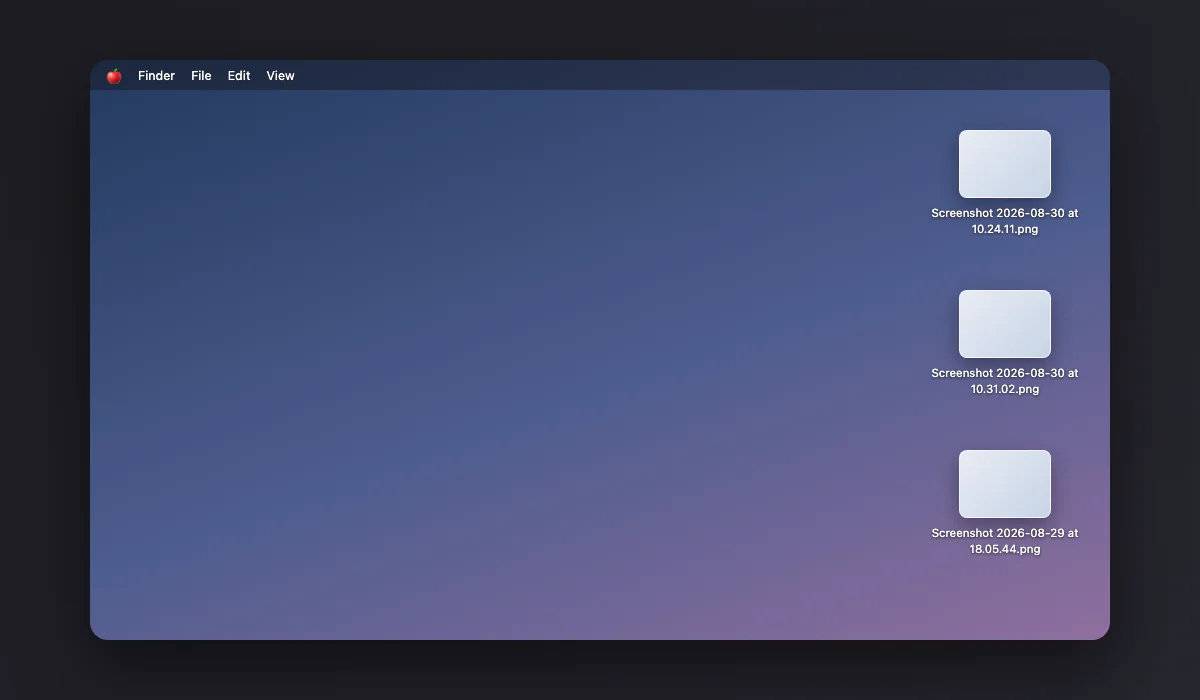
Every place a Mac screenshot can end up
| Destination | When |
|---|---|
| Desktop | The default |
| Clipboard | You held Ctrl with the shortcut, or chose Clipboard in options |
| A custom folder | Someone set it in ⇧⌘5 > Options > Save to |
| Documents, Mail, Messages, Preview | The other built-in choices in that same menu |
| Nowhere yet | The floating thumbnail is still on screen; the file writes when it disappears |
Check the setting that decides
Press ⇧⌘5 and open Options. The first section, Save to, is the answer to this whole article: whatever is checked there is where every screenshot goes, from every shortcut, not just from the panel. Change it once and ⇧⌘3 and ⇧⌘4 obey it too.
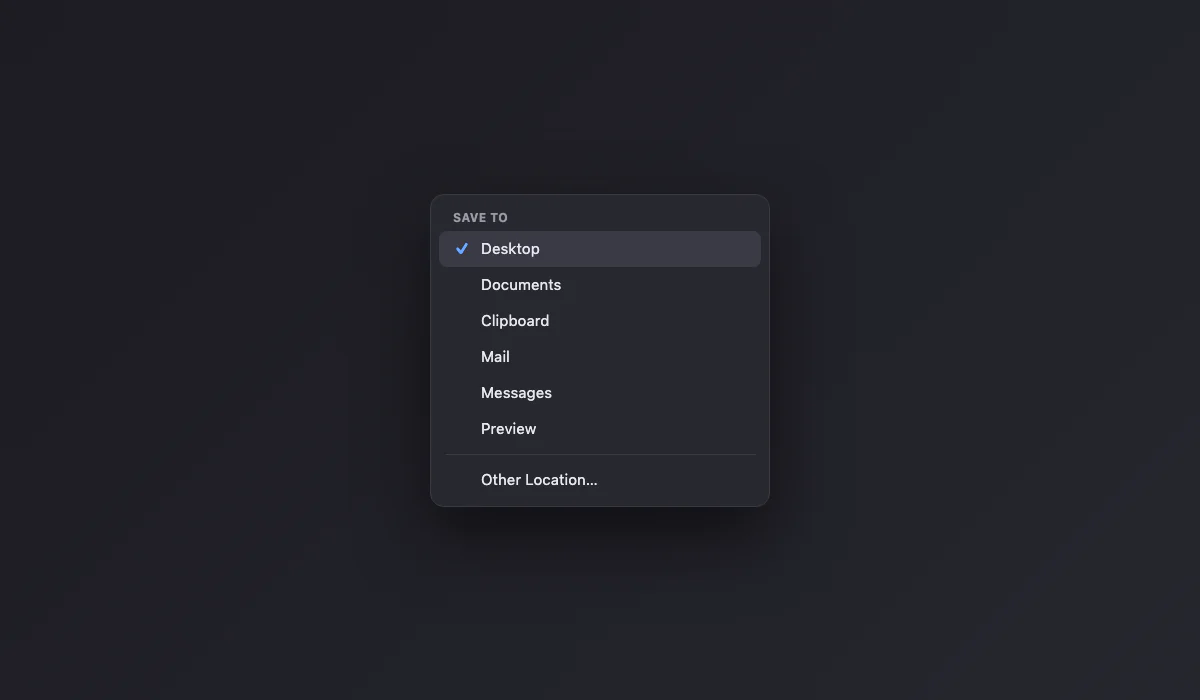
To use a folder of your own, pick Other Location and choose it. A dedicated Screenshots folder keeps the Desktop clean and makes captures searchable in one place.
When they are truly nowhere
Work through these in order. Open the clipboard test first: press ⌘V in any document; if the capture appears, you used the Ctrl variant. Then check the thumbnail: while the little preview floats in the corner, the file has not been written yet, and clicking it into markup delays it further. Then search: Spotlight for "Screenshot", or Finder > Recents sorted by date. If you use iCloud with Desktop & Documents sync, your Desktop lives in iCloud and a second Mac may be showing its own; the files are in iCloud Drive > Desktop. And finally, corporate Macs sometimes redirect or block captures via profiles, which no local setting overrides. If the shortcut itself does nothing, that is a different problem, covered in Mac screenshots not working.
Rename the pattern if you want
The "Screenshot" prefix can be changed from Terminal with one command: defaults write com.apple.screencapture name "Capture" followed by killall SystemUIServer. The same domain accepts a location key, which is what the Options menu writes for you; use the menu unless you have a reason not to.
Screen recordings follow the same setting
Videos recorded from the ⇧⌘5 panel obey the same Save to destination as screenshots, landing as .mov files named "Screen Recording" plus the date. If your screenshots are on the Desktop but a recording seems missing, remember they can take a moment to finish writing after you stop: the file appears when processing ends, not when you press stop. If you cannot find how to stop a recording in the first place, see how to stop screen recording on a Mac.
Third-party tools do not follow it
The Save to setting governs Apple's shortcuts only. Screenshot apps bring their own destination settings, and some default to their own library folders rather than loose files. If a capture is missing and you use any third-party tool, check that tool's preferences before blaming macOS: the file is usually sitting in the app's own folder, exactly where it was told to go.
Desktop Stacks: the band-aid that helps today
If the Desktop is already buried, right-click it and choose Use Stacks. macOS gathers every screenshot into a single expandable pile by file type, instantly. It does not move anything on disk, so it is organization theater rather than organization, but it makes the Desktop usable again in one click while you decide on a real folder.
Automate the sorting, once
The clean endgame: screenshots save to a dedicated folder automatically, and you never think about this again. Two ways there. The simple one: ⇧⌘5 > Options > Other Location, pick a Screenshots folder, done. The fancier one, if you want captures sorted by month or renamed by project: a Folder Action or a Shortcuts automation watching that folder can move, rename or tag every new file the moment it arrives. Ten minutes of setup, permanent order.
Your iPhone screenshots are a different system entirely
A steady source of confusion: people look on the Mac's Desktop for a screenshot they took on their iPhone. Phone captures never pass through the Save to setting; they live in the Photos ecosystem. With iCloud Photos on, they appear in the Photos app on the Mac (under the Screenshots media type album), not as files in a folder. To get one as an actual file, drag it out of Photos or use AirDrop, which drops incoming files into Downloads, a third location to check. Mac captures: Desktop rules apply. iPhone captures: Photos. AirDropped ones: Downloads. Three systems, three answers, one confused search until you know the split.
The search trick that finds every screenshot ever
macOS quietly tags every capture the system takes with hidden metadata, and you can search by it. In Finder press ⌘F, click the first filter dropdown, choose Other, and enable "Screen capture". Set it to true, and the search returns every screenshot on the entire Mac: renamed ones, moved ones, ones from years ago in forgotten folders. Save it as a Smart Folder in the sidebar and you have a permanent, live view of all your captures regardless of where they were saved. For screenshots that came from other devices or apps (which lack the tag), a name search for "Screenshot" plus a date range covers the rest.
The command line sets its own destination
Scripts and power users capture with the screencapture Terminal command, and it ignores the Save to setting entirely: it writes exactly where its argument says, like screencapture ~/Documents/shot.png. If captures are appearing in a strange folder on a machine you share with a developer, or an automation runs on your Mac, a script choosing its own path is a likely explanation. The ⇧⌘5 setting only governs the interactive shortcuts.
Deleted one by accident?
Screenshots deleted from the Desktop go to the Trash like any file, and they stay there for 30 days if you have automatic Trash emptying on. If it is not in the Trash and not in Spotlight, and the Desktop syncs to iCloud, check iCloud Drive's Recently Deleted on the web. There is no separate screenshot recycle bin beyond those: what is gone from both is gone.
Pasted, not saved: captures that live inside apps
One entire category of missing screenshots was never a file. Captures taken with the Control variants go to the clipboard, and when you paste one into Slack, Notes, Mail or a Google Doc, the image lives inside that app or document from then on: there is nothing to find in any folder because nothing was ever written to one. If you remember taking a capture and pasting it somewhere, the copy is wherever you pasted it, and re-capturing is usually faster than archaeology. The habit fix, if this keeps happening: use the plain shortcuts for anything you may want again, and the Control variants only for genuinely disposable pastes.
Sort the pile you already have
If years of captures live on your Desktop, select them all (they sort together alphabetically thanks to the shared prefix), make a Screenshots folder, and drag. Going forward, the custom folder plus the clipboard variant for throwaway captures keeps it permanently clean. And when a capture is going into a doc or post, our free screenshot beautifier frames it in the browser: nothing uploads. For the shortcuts themselves, start with how to screenshot on a Mac.