The short answer
A screen recording started with Shift + Command + 5 (or from QuickTime Player) puts a small stop button in the menu bar, a square inside a circle near the clock. Click it and the recording ends. The keyboard equivalent is Command + Control + Esc. Both are described in Apple's support article How to record the screen on Mac, which we checked on 2026-10-05.
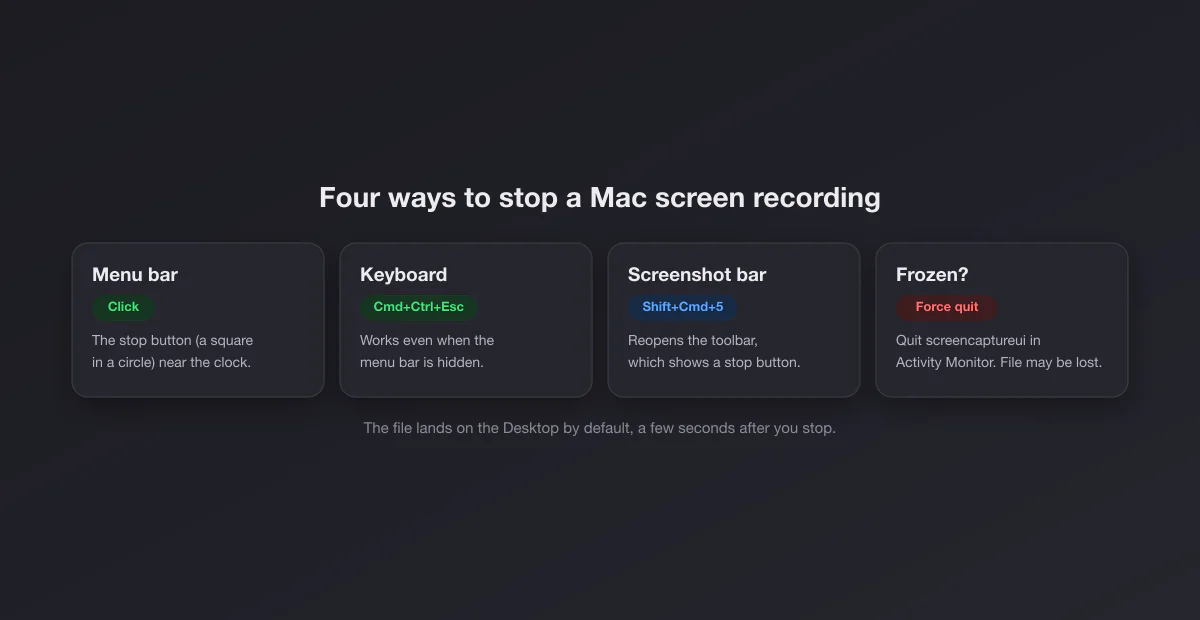
Four ways to stop, from easiest to last resort
| Method | How | When to use it |
|---|---|---|
| Menu bar button | Click the stop icon near the clock | Normal case |
| Keyboard shortcut | Command + Control + Esc | Menu bar hidden, full screen app, or you just prefer keys |
| Screenshot toolbar | Press Shift + Command + 5 again; the toolbar shows a stop button while recording | When the shortcut does not respond |
| Force quit | Activity Monitor, quit screencaptureui | Recording frozen, nothing else works |
The stop button is missing from the menu bar
This is the most common reason people search for this. The button is there; you cannot see it. Three usual causes:
- A full screen app. When you record over an app in full screen mode, the menu bar hides. Move the pointer to the very top of the screen and hold it there for a second; the menu bar slides down with the stop button. Or skip the menu bar and press Command + Control + Esc.
- The notch. On MacBooks with a camera notch, menu bar icons that do not fit get hidden behind it, and with many apps running the stop button can be one of them. Quit a couple of menu bar apps, or use the shortcut. Menu bar managers can also hide it on purpose; check their hidden section.
- The menu bar is set to auto hide. If System Settings > Control Center > Automatically hide and show the menu bar is on, it only appears when you hover at the top.
The keyboard shortcut works in all three cases, which is why it is worth memorising.
Command + Control + Escape does nothing
Check two things. First, that a recording is actually running: if the stop icon is not in the menu bar and the toolbar shows no stop button, there is nothing to stop, and the file may already be saved. Second, that another app is not grabbing the combination. Some keyboard utilities and remapping tools intercept it. Use the menu bar button or the Shift + Command + 5 toolbar instead.
Do not confuse it with Command + Option + Esc, which opens the Force Quit window. That is the last resort described below, not a stop button.
Recordings started from QuickTime Player
QuickTime Player's File > New Screen Recording opens the same screenshot toolbar on modern macOS, so it stops the same way: menu bar button or Command + Control + Esc. On older macOS versions QuickTime ran its own recorder; there you stop it from the menu bar icon or with the same shortcut, and QuickTime opens the recording in a window. Save it from there with Command + S, or it may be lost when you close the window.
Recordings made by another app (Zoom, OBS, Loom, a game capture tool) are stopped from that app, not from macOS. The menu bar may still show a recording indicator, the purple or orange privacy dot, which tells you that something is capturing but is not itself a stop button.
The recording is frozen and will not stop
Occasionally the recorder hangs: the stop button does nothing, the shortcut does nothing, and the toolbar will not open. Force quitting the screenshot process ends it.
- Open Activity Monitor (Spotlight: Command + Space, type Activity Monitor).
- In the search box, type
screencapture. You will usually seescreencaptureui, sometimes alsoscreencapture. - Select it, click the stop button in the toolbar (the octagon with an X), and choose Quit, then Force Quit if Quit does nothing.
Fair warning: a force quit can lose the recording, because the file is finalised only when the recorder stops cleanly. Try every method above first. If you are comfortable with Terminal, killall screencaptureui does the same thing.
If the Mac itself is frozen, hold the power button until it shuts down. The recording in progress will almost certainly be lost.
Where the recording went
By default, recordings are saved to the Desktop, named Screen Recording followed by the date and time, as a .mov file. That is according to Apple's guide linked above.
The detail that makes people think the file vanished: when Show Floating Thumbnail is on, a preview sits in the bottom right corner for a few seconds after you stop, and the file is only written once it slides away. Wait a moment, or click the thumbnail to open, trim and save it. If you swipe it away or drag it somewhere, that action decides where it goes.
| Symptom | Likely reason | Where to look |
|---|---|---|
| Not on the Desktop | A different "Save to" location is set | Shift + Command + 5 > Options > Save to |
| Appears late | Floating thumbnail delays saving | Wait a few seconds, or turn the thumbnail off in Options |
| Desktop shows nothing new | Desktop Stacks or iCloud Desktop sync | Finder > Desktop, or the Screenshots stack |
| File missing after force quit | Recording never finalised | Usually unrecoverable |
To change the destination for next time, open Shift + Command + 5, click Options, and pick a folder under Save to, or Other Location. Screenshots and recordings share that setting. Our guide to where screenshots go on a Mac covers the save folder in depth.
Recordings are .mov files and can be large. To share one, trim it first: open it in QuickTime Player and use Edit > Trim, or click the floating thumbnail right after recording and trim there.
Stopping a recording started with a timer or a selection
If you set a timer in Options, the countdown can be cancelled with Esc before it starts. Once it is recording, it stops like any other. A recording of a selected portion of the screen stops the same way; the selection outline disappears when it ends.
Older macOS versions
The Shift + Command + 5 toolbar arrived with macOS Mojave in 2018. On anything older, screen recording only exists in QuickTime Player: File > New Screen Recording, click the record button, then stop from the menu bar icon or with Command + Control + Esc. QuickTime then opens the clip, and nothing is saved until you choose File > Save. If you close that window without saving, the recording is gone.
Changing the shortcut that starts recordings
The keyboard shortcuts for screenshots and recordings live in System Settings > Keyboard > Keyboard Shortcuts > Screenshots. You can reassign the combination that opens the toolbar ("Screenshot and recording options") if another app already uses Shift + Command + 5. The stop shortcut, Command + Control + Esc, is not listed there and works as is.
The recording has no sound
A common surprise after stopping: the video is silent. The macOS recorder captures the microphone only if you chose one under Options > Microphone before starting, and whether it captures the Mac's own audio (music, a video, the other side of a call) depends on your macOS version. According to Apple's screen recording page (published September 14, 2026), macOS 27 Golden Gate and later add an Include System Audio option to the built-in recorder (in the Screenshot toolbar and in QuickTime Player); on macOS 26 and earlier there is no such option, which is why people on those versions add a third party audio driver or use a recorder that supports system audio. Choosing the microphone after the fact is not possible; the setting has to be in place before you press record.
Starting it right next time
A few habits make stopping painless:
- Learn Command + Control + Esc before you need it. It works with a hidden menu bar, in full screen apps, and with a crowded notch.
- Record a portion of the screen instead of the whole screen when you can. The files are smaller and the menu bar stays visible.
- Set the microphone in Options before starting, so you do not stop and restart to add sound.
- Pick a save location you will remember. A dedicated Recordings folder beats a cluttered Desktop.
For screenshots rather than video, the shortcuts are in Mac screenshot shortcuts, and the complete walkthrough is how to screenshot on a Mac. If captures stopped working entirely, see screenshot not working on Mac.
Capturo for Mac: screen recording with a stop you can always find
- Record the screen or an area (⇧⌘9) with system audio, composed live over a gradient background, then turn short clips into a GIF (up to 45 s)
- Capture and annotate screenshots in place: arrows, text, pixelated blur
- Native Swift, about 2 MB, no subscription: $29 once
Turning a frame into a picture
Need a still from the recording? Pause the video in QuickTime at the right frame and take a screenshot of the window with Shift + Command + 4, then Space. Crop it with the Mac crop tools and frame it with our free screenshot beautifier.