Start here: what exactly fails?
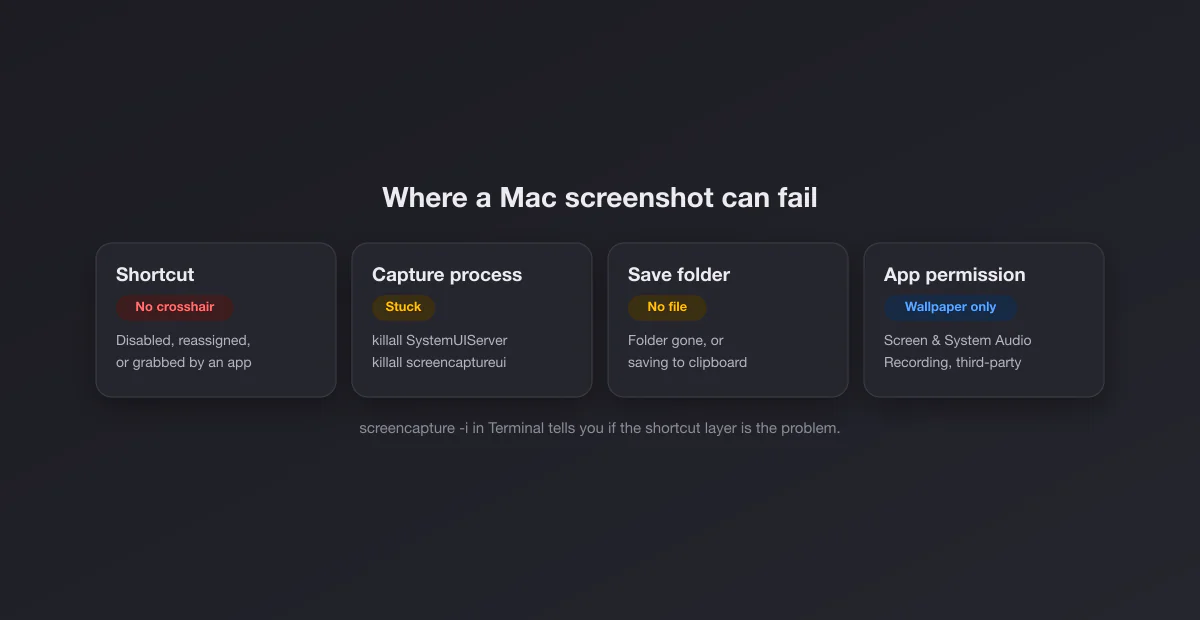
A Mac screenshot involves the keyboard shortcut, a background process that draws the crosshair and the thumbnail, and a save step that writes the file. Third-party capture apps add a fourth layer: macOS privacy permission. Identify the failing layer and the fix is usually one setting.
| Symptom | Likely cause | Fix |
|---|---|---|
| Shortcut does nothing, no sound, no crosshair | Shortcut disabled or reassigned, or another app owns it | Fixes 2, 3 |
| Crosshair or sound, but no file anywhere | Save location missing, or set to the clipboard | Fixes 1, 4 |
| Thumbnail appears but then the file is missing | Saving to a folder you do not check, or iCloud moved it | Fix 4 |
| A third-party app captures only the wallpaper or black | Screen & System Audio Recording permission missing | Fix 5 |
| Black rectangle where a video or app should be | Protected content | Fix 6 (nothing to repair) |
| Worked yesterday, now everything is stuck | Screenshot process hung | Fix 7 |
| Nothing works, even from Terminal | Policy, profile or deeper system issue | Fixes 8, 9, 10 |
Fix 1: check whether it went to the clipboard
Holding Control while pressing any screenshot shortcut sends the capture to the clipboard instead of saving a file. If you press Command + Control + Shift + 4 out of habit, or a keyboard remap adds Control, you will hear the shutter and find no file. Open Preview and choose File, New from Clipboard, or paste into Notes: if the image is there, nothing is broken.
The Command + Shift + 5 panel can also be set to save to the Clipboard by default (Options, Save to). More on that in Fix 4. Our full list of Mac screenshot shortcuts shows which modifier does what.
Fix 2: make sure the shortcuts are enabled
The screenshot shortcuts are ordinary macOS keyboard shortcuts, so they can be switched off or reassigned, sometimes by an app's installer.
- Open Apple menu, System Settings, Keyboard.
- Click Keyboard Shortcuts, then choose Screenshots in the sidebar.
- Make sure every entry is ticked and shows the expected keys (Shift Command 3, Shift Command 4, Shift Command 5, plus the clipboard variants).
- If something looks wrong, click Restore Defaults.
While you are there, look through the other categories (App Shortcuts, Services, Mission Control) for anything else assigned to Shift Command 3, 4 or 5. A duplicate binding means one of the two will silently lose.
Fix 3: quit apps that take over the keys
Capture apps (CleanShot X, Snagit, Shottr, Lightshot, Monosnap, Dropbox's screenshot feature and others) often offer to replace the system shortcuts. When one is installed, Command + Shift + 4 may open its capture tool instead of Apple's, or do nothing if the app has crashed or lost its permission. Keyboard remappers such as Karabiner-Elements and some mouse or keyboard vendor utilities can also intercept the combination.
Quit those apps from the menu bar, press the shortcut, and see whether Apple's crosshair returns. If it does, either keep the third-party tool and use its shortcuts, or turn off its "replace system shortcuts" option. Dropbox, in particular, saves captures into a Dropbox folder rather than the Desktop when its screenshot option is on.
Fix 4: check the save location
According to Apple's screenshot support page, screenshots save to the desktop by default, and the location can be changed in the Screenshot app's Options menu. That flexibility is also a trap: if the chosen folder is later deleted, renamed or on a drive that is not connected, captures fail with no error.
- Press Command + Shift + 5.
- Click Options and look at the Save to section.
- Pick Desktop, or choose Other Location and select a folder that exists.
Two related surprises. With Desktop & Documents Folders turned on in iCloud Drive, files on the Desktop sync and can be optimised away from the Mac, so a capture may appear on another device first. And the location can be set from Terminal with defaults write com.apple.screencapture location; if someone did that, the Options menu shows it as Other Location. To reset it from Terminal, run defaults delete com.apple.screencapture location followed by killall SystemUIServer. For every possible destination, see where screenshots go on Mac.
Fix 5: grant Screen Recording permission to third-party apps
This is the fix for "my capture app only shows the wallpaper", "the window contents are blank" or "the app asks for permission every time". Since macOS Catalina, an app needs explicit permission to read the contents of other windows. Apple's own shortcuts do not need it, which is why built-in screenshots keep working while a third-party tool fails.
According to Apple's guide to screen and audio recording access, the setting lives in Apple menu, System Settings, Privacy & Security, Screen & System Audio Recording (older versions call it Screen Recording). For each app listed you can turn recording on or off, and you can add an app that is missing with the add button.
- Find your capture app in the list and turn it on. If it is already on, turn it off and on again; a stale permission after an app update is a common cause.
- Quit and reopen the app. Many apps only check the permission at launch.
- If the app is missing, click the add button and select it from Applications.
Recent macOS versions also ask you periodically to confirm that a third-party app should keep screen access. Answering "Allow" keeps it working; dismissing the prompt can quietly revoke it. The same permission applies to screen recorders and to video call apps that share your screen.
Fix 6: understand black or missing content
If the screenshot works but one area is black or empty, the content is protected on purpose. Apple's page notes that some apps, such as the Apple TV app, might not let you take screenshots of their windows. Streaming services in Safari and other browsers, DRM video and some secure apps behave the same way. Nothing on your Mac is faulty and no setting changes it. The same rule applies to screen recordings. To know whether a capture in an app will be noticed by the other person, that is a separate question with app-by-app answers, such as FaceTime and iMessage.
Fix 7: restart the screenshot processes
If shortcuts worked earlier in the day and stopped, the background process that draws the crosshair or the thumbnail may be stuck. Restarting it takes seconds. Open Terminal (Applications, Utilities) and run:
killall SystemUIServer
killall screencaptureui
Both restart automatically. The first refreshes the menu bar process that handles screenshot settings; the second restarts the capture interface itself. If the command says no matching processes were found, that is fine, it simply was not running. If the problem returns often, a full restart of the Mac clears it more thoroughly.
Fix 8: test from Terminal to isolate the problem
macOS includes a command line capture tool that bypasses the keyboard shortcut entirely. Run:
screencapture -i ~/Desktop/test.pngThe -i flag starts an interactive selection, just like Command + Shift + 4. Drag over an area and check the Desktop for test.png.
- It works: capturing is fine and the problem is the shortcut layer. Go back to Fixes 2 and 3.
- It fails or saves an empty image: the problem is deeper. Continue with Fixes 9 and 10.
Fix 9: check for a management profile
On a work or school Mac, screenshots can be disabled by a configuration profile from device management. Open System Settings, Privacy & Security, and scroll to Profiles (on some versions it sits under General, Device Management). If a profile is installed by your organisation, ask IT whether screen capture is restricted. A restriction cannot be bypassed locally, and it often explains a Mac where nothing on this page helps.
Fix 10: start up in Safe Mode
Safe Mode starts the Mac without third-party login items and extensions, which tells you whether something you installed is interfering. Apple's Safe Mode instructions:
- Apple silicon: shut down, press and hold the power button until "Loading startup options" appears, select your startup disk, then hold Shift and click Continue in Safe Mode.
- Intel: start or restart and immediately hold Shift until the login window appears.
Try a screenshot. If it works in Safe Mode, a third-party app or login item is the cause: restart normally and remove recently installed utilities one at a time. If it still fails in Safe Mode, Apple suggests reinstalling macOS, which does not remove your personal files.
MacBook keyboards: three small gotchas
On a MacBook the shortcuts do not need the fn key, unlike Print Screen on many Windows laptops. But three keyboard details cause false alarms. External Windows keyboards swap the Command and Option positions, so Shift + Windows key + 4 is what you want, not Shift + Alt + 4. Remapped modifier keys (System Settings, Keyboard, Keyboard Shortcuts, Modifier Keys) can turn Command into something else. And on older MacBook Pro models with a Touch Bar, Command + Shift + 6 captures the Touch Bar, not the screen. Our guides to screenshots on a Mac or MacBook and on a MacBook Air cover the keys model by model.
Quick fixes for related problems
| Problem | Fix |
|---|---|
| The shutter sound is gone, or too loud | It follows the system volume; see turning off the screenshot sound |
| Thumbnail delays the file by a few seconds | Command + Shift + 5, Options, untick Show Floating Thumbnail |
| A screen recording will not stop | See how to stop a screen recording on Mac |
| Need the whole web page, not just the visible part | Use the browser: full page screenshots in Chrome and Safari |
| Screenshot needs trimming | Cropping a screenshot on Mac |
Capturo for Mac: every capture, annotated and recorded, in one native tool
- Capture a region or window and annotate in place: arrows, text, and pixelated blur for anything private
- Record the screen or an area (⇧⌘9) with system audio, composed live over a gradient background, then turn short clips into a GIF (up to 45 s)
- Gradient backgrounds, padding and your own branding on every export
- Native Swift, about 2 MB, no subscription: $29 once
Like any third-party capture app, Capturo needs the Screen & System Audio Recording permission from Fix 5 to see other windows. It does not replace Apple's shortcuts unless you choose to.
Once screenshots work again
A raw capture does the job; a framed one looks deliberate. Drop it into our free screenshot beautifier for padding, a background and rounded corners, right in the browser. For the basics of every capture mode, see how to screenshot on Mac.